On this page
Industrial SCADA systems are the most data-rich yet most isolated software in enterprise IT. An Ignition gateway sits on mountains of real-time tag data, alarm history, audit trails, and process databases — but accessing any of it requires specialized tools. The Ignition Designer for configuration. Vision or Perspective clients for visualization. Custom Jython scripts for anything beyond the standard workflows.
None of these tools are accessible to an AI assistant. Claude cannot open the Designer. It cannot browse your tag tree. It cannot query your alarm journal or check which modules are running on your production gateway.
What if it could?
We built an MCP server that gives Claude direct, live access to Ignition gateways — 66 tools that cover everything from reading tag values to deploying Perspective views. Here is what it looks like to go from zero to a full gateway overview in under two minutes.
Install in 60 Seconds
Most MCP servers require cloning a repo, installing Python dependencies, and editing JSON configuration files. That is a non-starter for operations engineers who need tools, not setup rituals.
The Ignition MCP server ships as an .mcpb file — a self-contained bundle that Claude Desktop can install with drag-and-drop. No terminal. No pip install. No JSON editing.
Here is the full install flow:
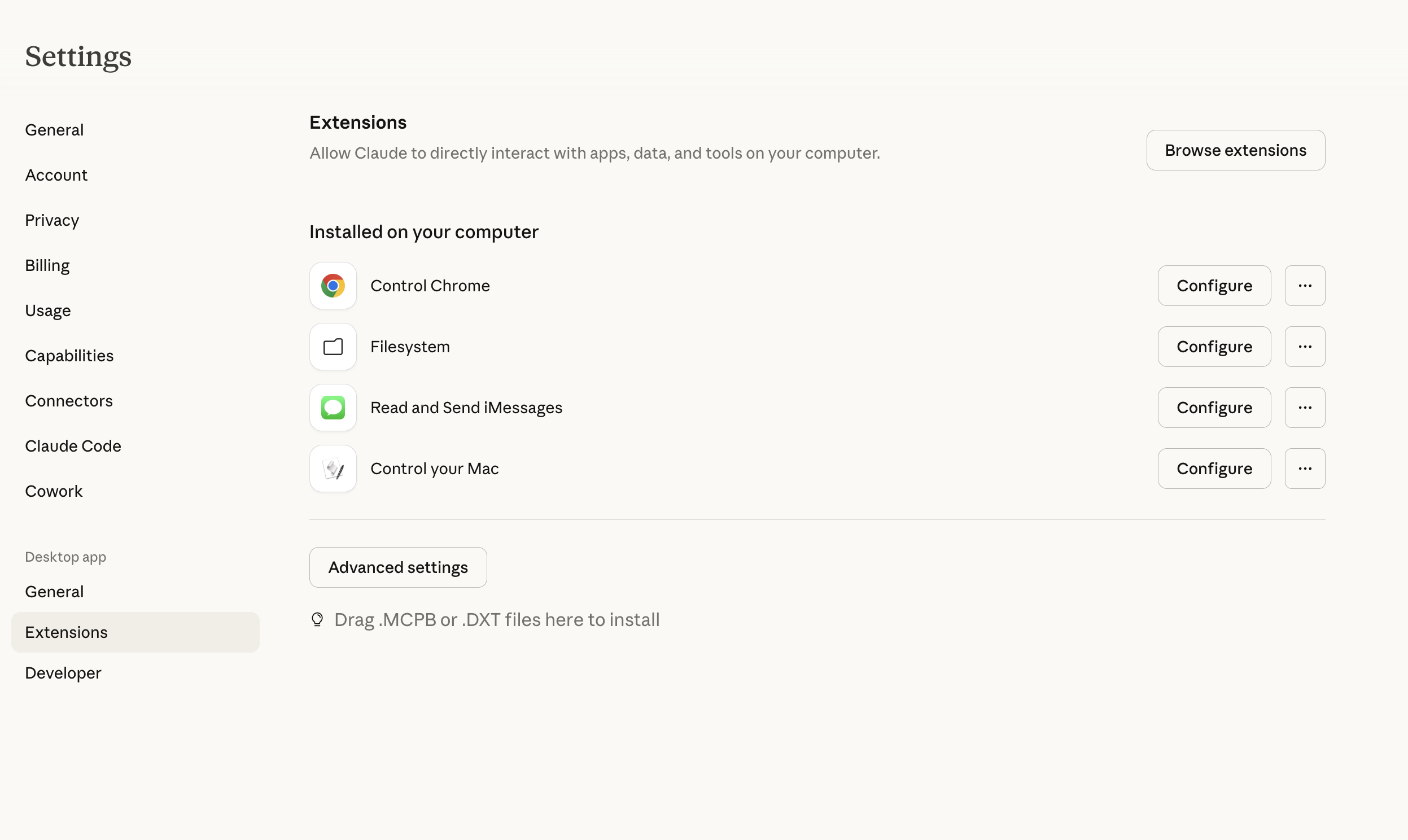
1. Open Extensions. In Claude Desktop settings, navigate to Extensions. You will see any existing extensions and a drop zone at the bottom.
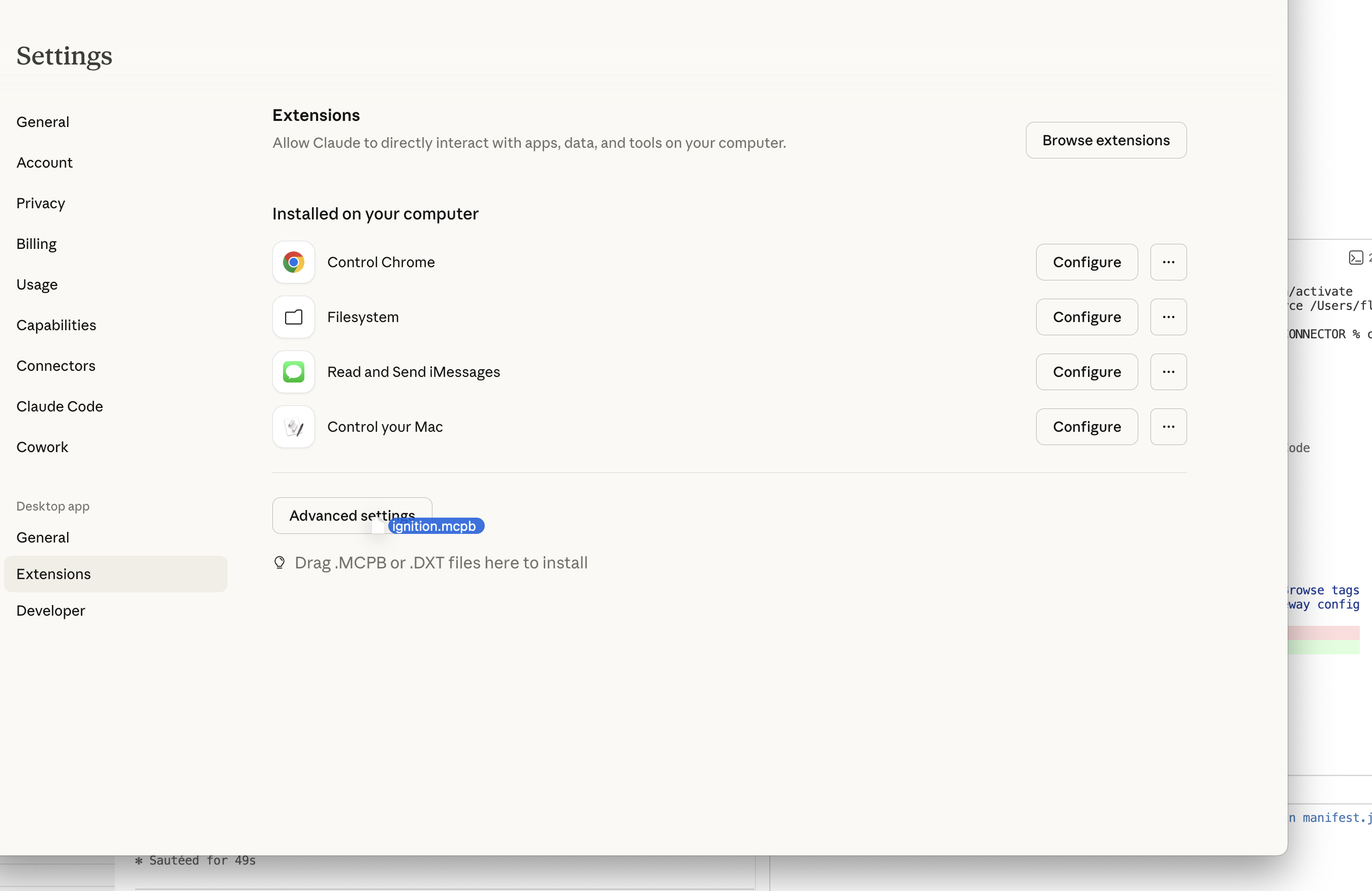
2. Drag the .mcpb file. Drag the ignition.mcpb bundle from Finder onto the drop zone. Claude Desktop recognizes the format immediately.
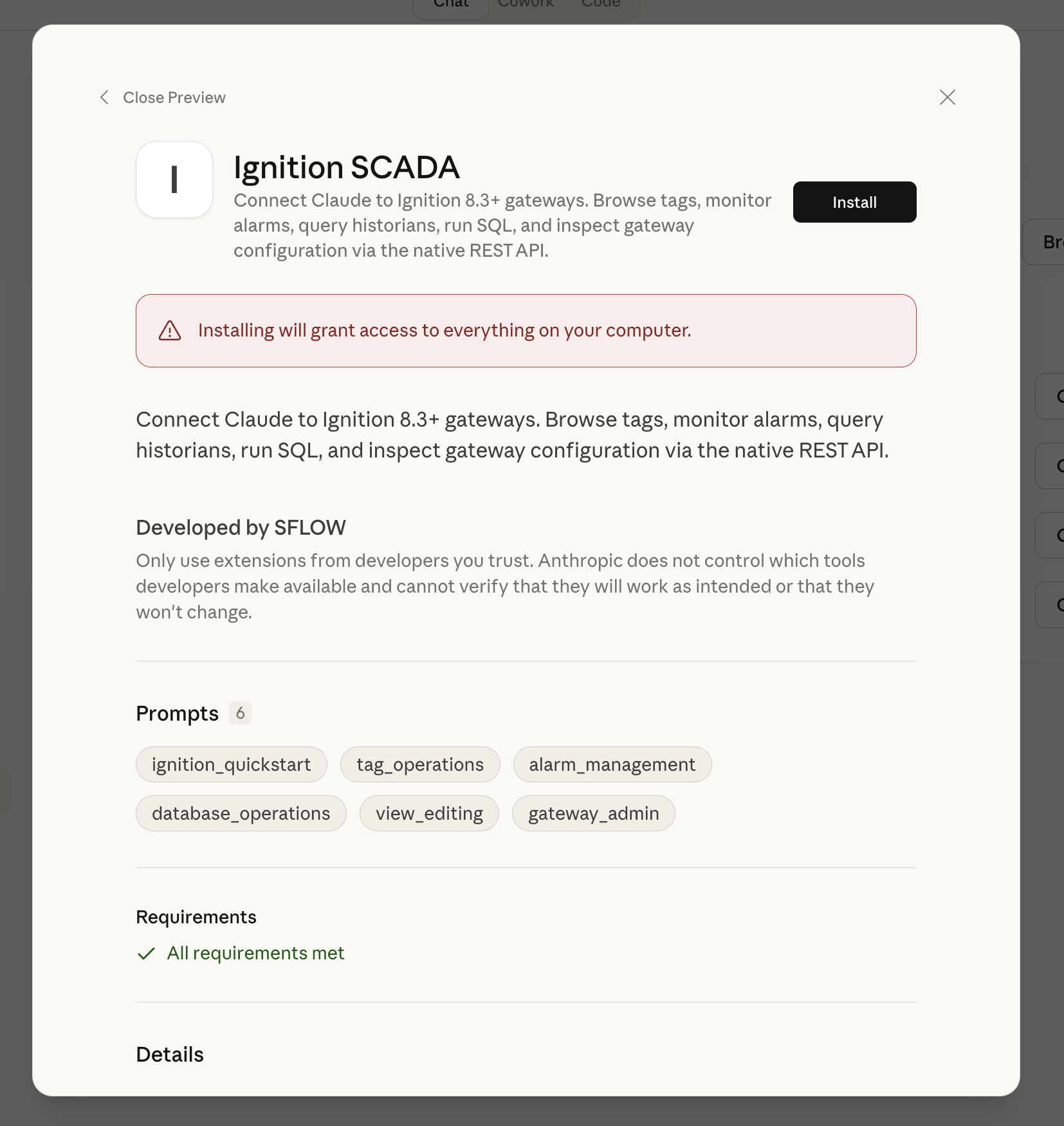
3. Preview the extension. Before installing, you see exactly what you are getting: the extension name, description, 6 built-in prompts, and a requirements check.
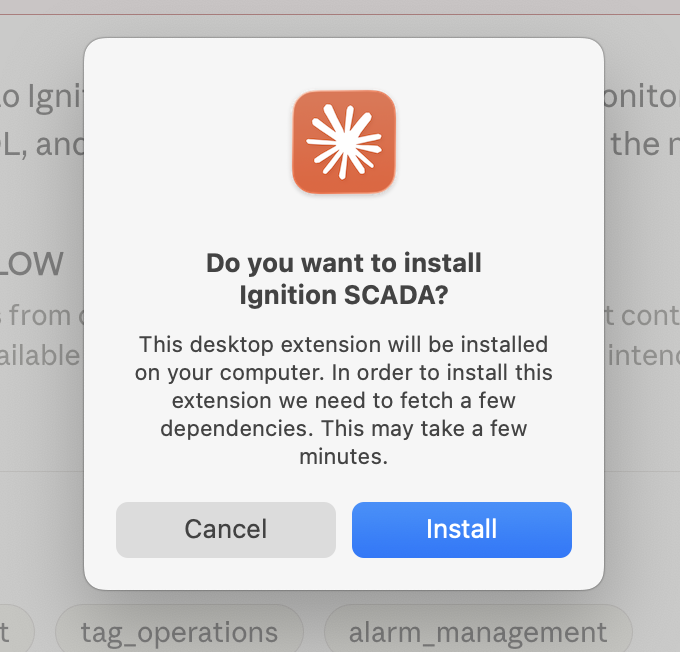
4. Confirm install. One click. Claude Desktop fetches dependencies in the background.
5. Configure. Two fields: your gateway URL and an API token. Both can be left blank if you prefer to configure them through chat — Claude will walk you through it.
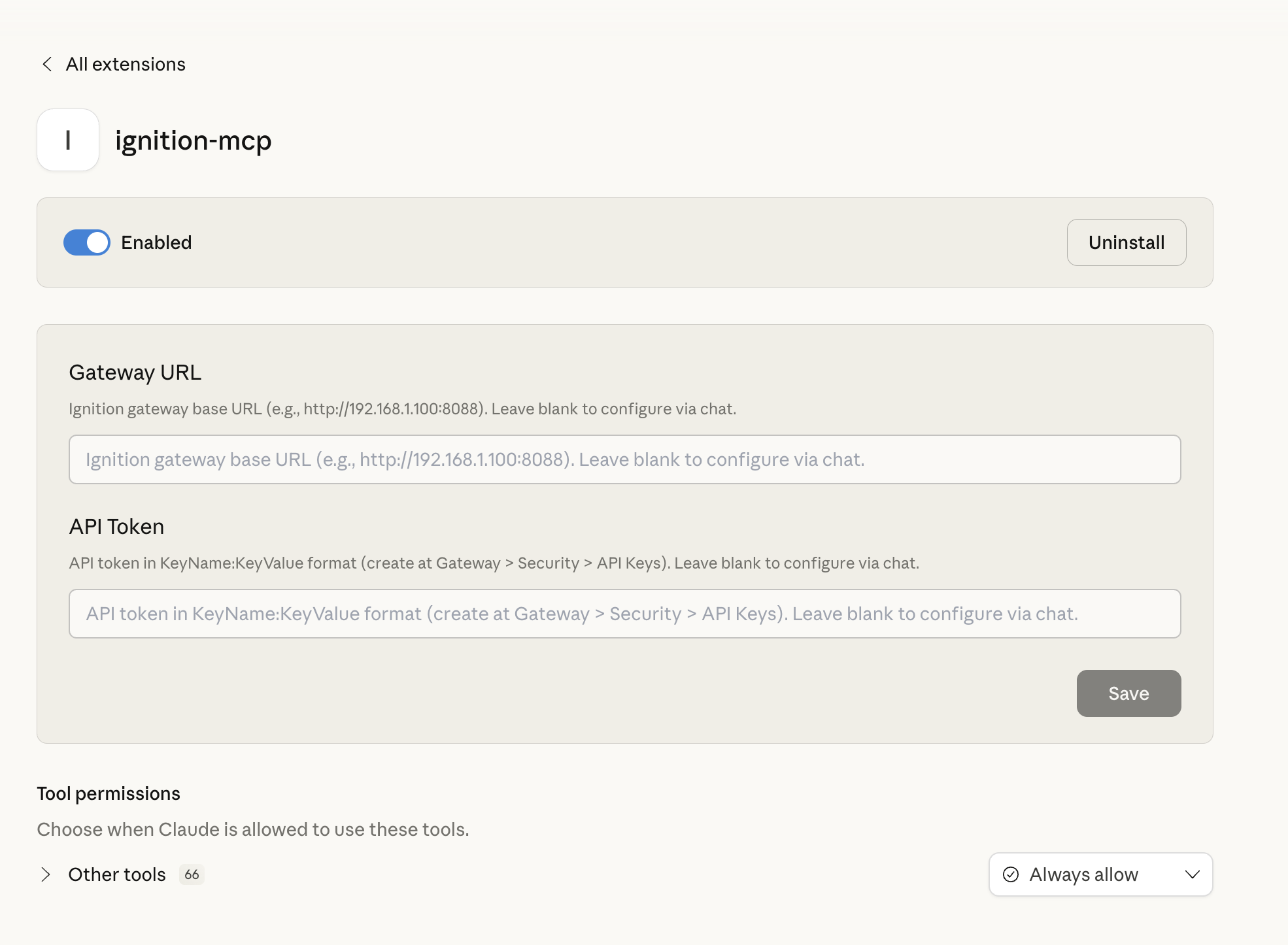
6. Tool permissions. All 66 tools appear with granular permission controls. Set them to "Always allow", require confirmation per-call, or disable individual tools entirely.
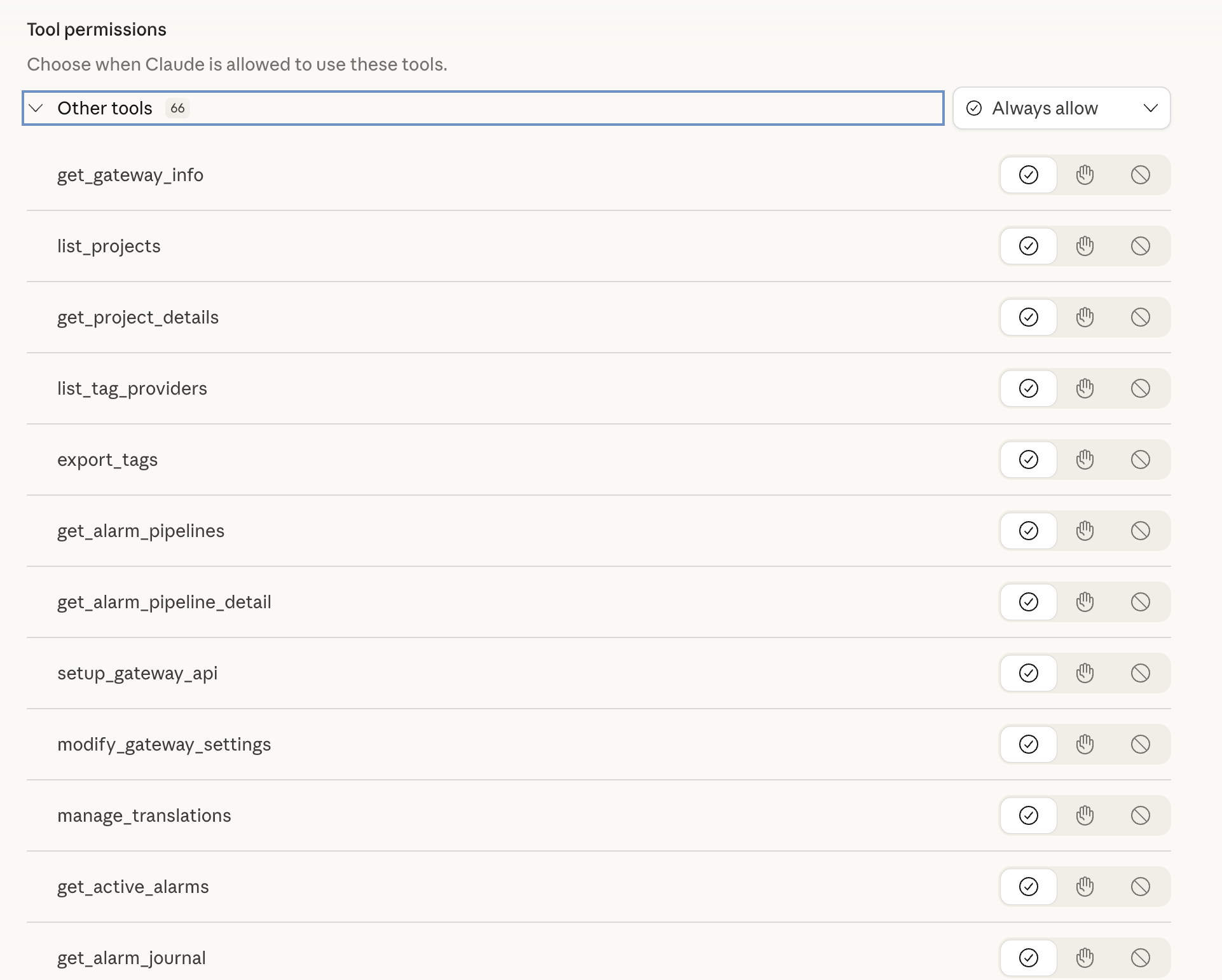
That is the entire setup. No virtual environments, no path configuration, no claude_desktop_config.json surgery. The .mcpb format handles dependency resolution, server startup, and tool registration automatically.
First Conversation: From Zero to Gateway Overview
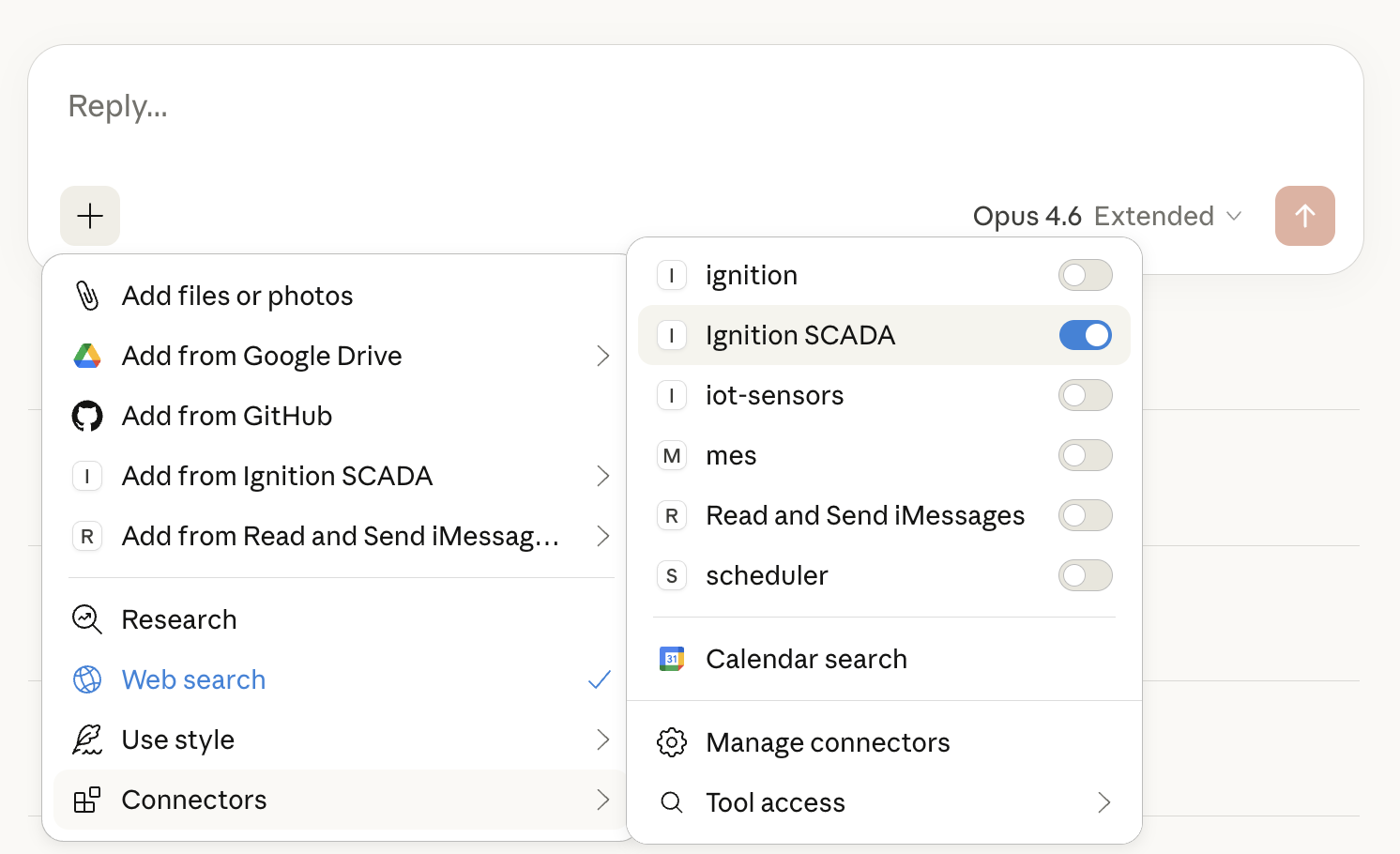
With the extension installed, the Ignition connector shows up as a data source in Claude Desktop's chat menu — right alongside files, Google Drive, and GitHub.
Toggle the connector on. Click the + button in any chat, open Connectors, and enable "Ignition SCADA".
Pick a starting point. The extension ships with 6 built-in prompts — domain-specific starter kits that attach the right context to your conversation: Ignition quickstart, Tag operations, Alarm management, Database operations, View editing, and Gateway admin.
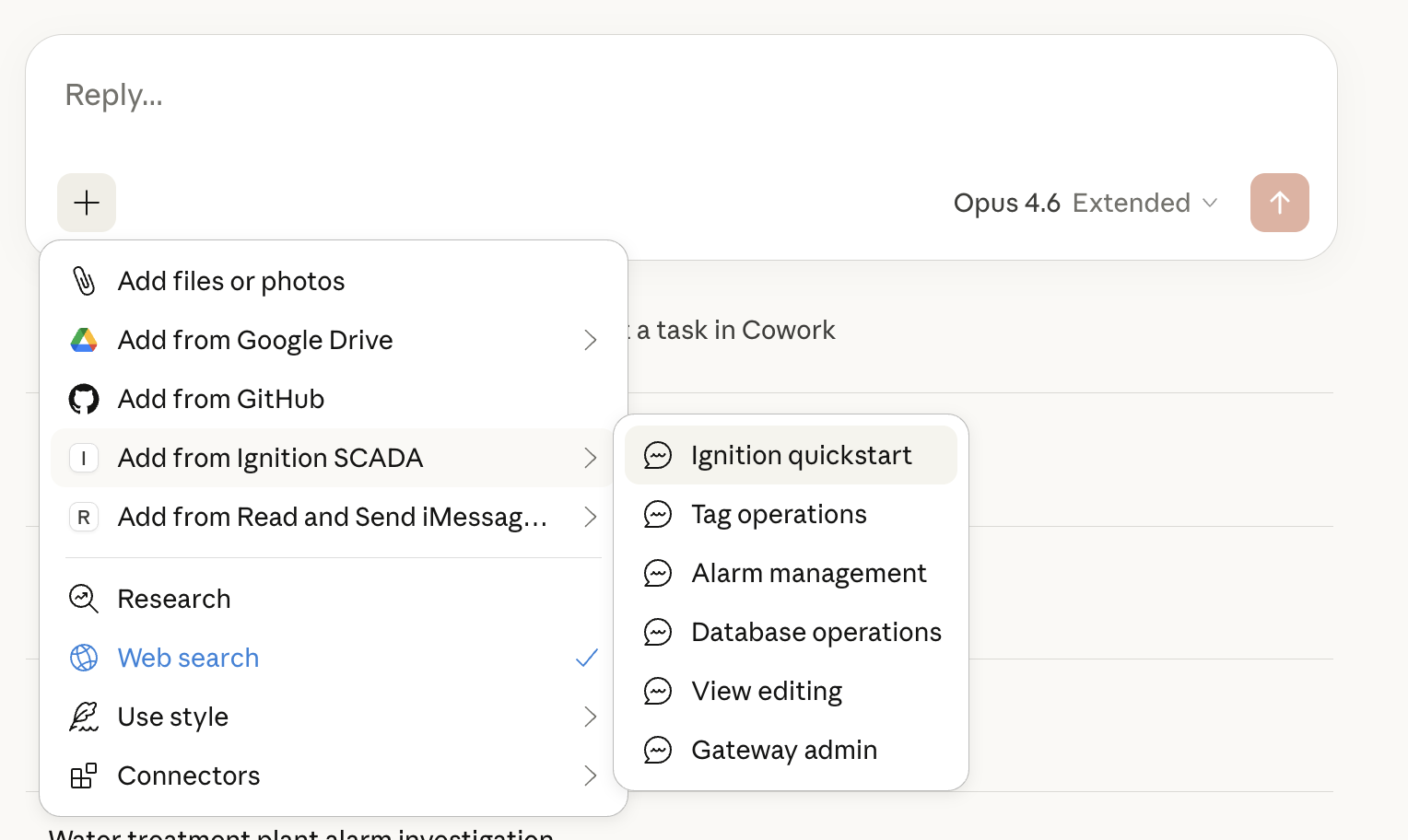
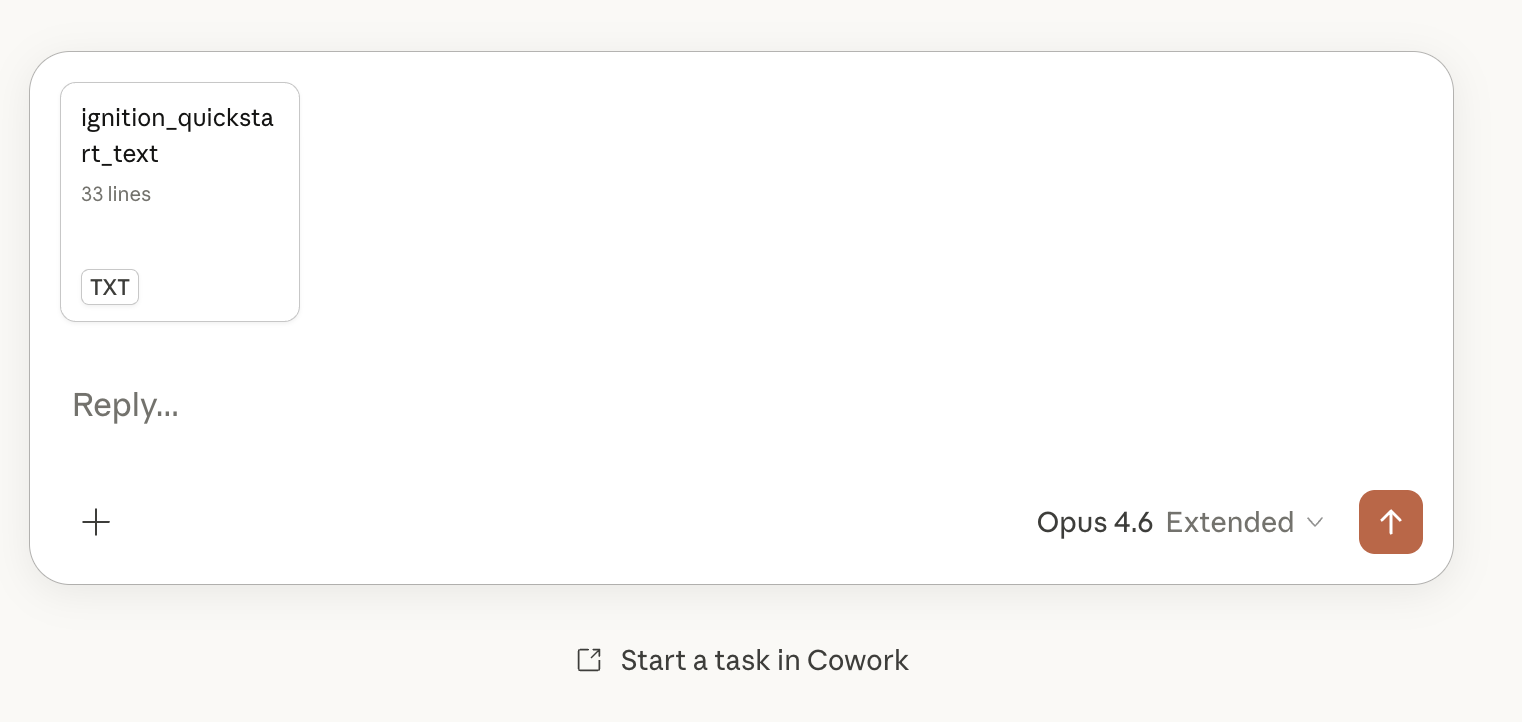
Launch the quickstart. Selecting "Ignition quickstart" attaches a 33-line prompt to your chat that tells Claude to connect to the gateway, deploy the WebDev bridge if needed, and produce a full system overview.
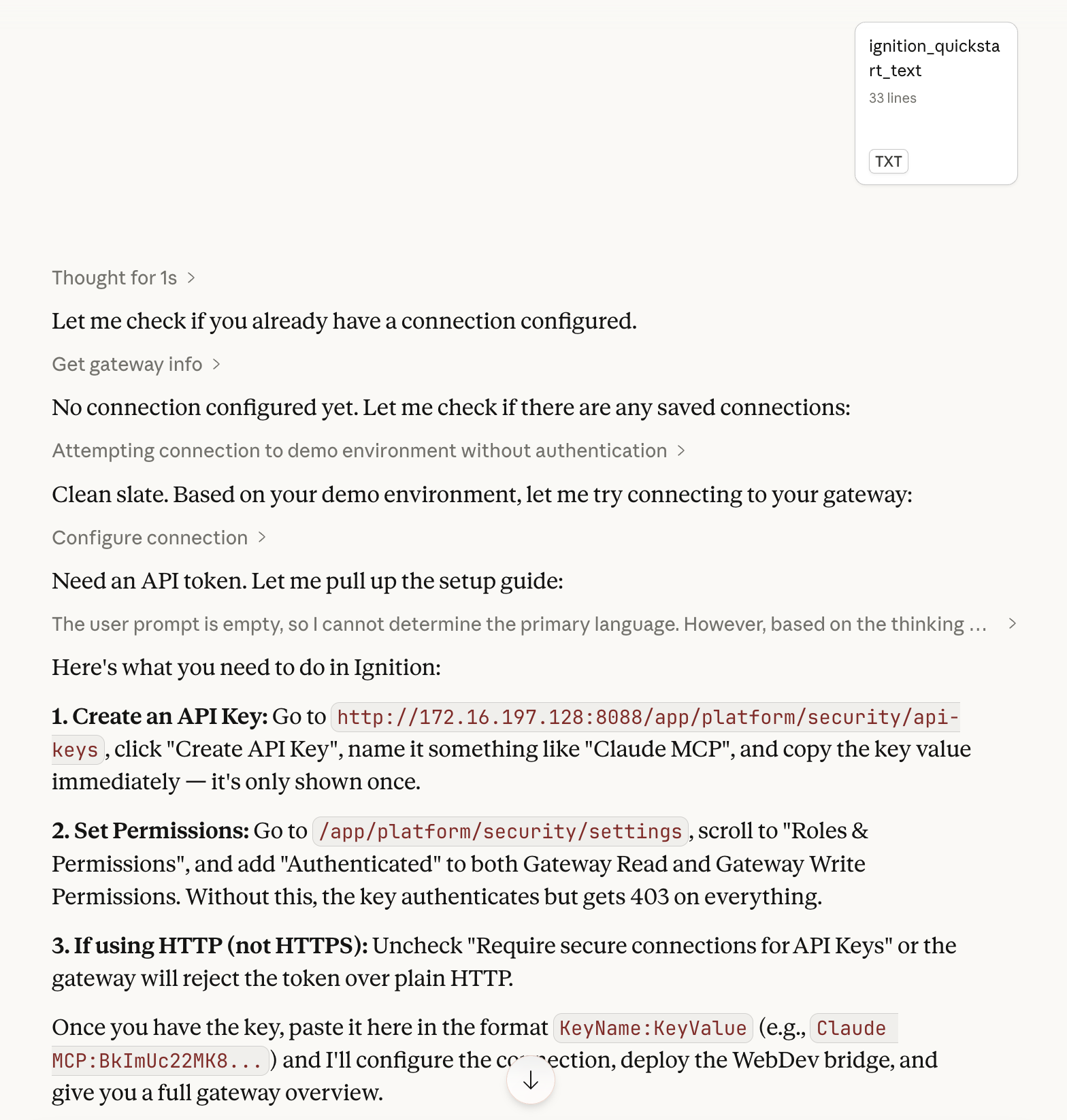
Claude walks through setup. With no connection configured, Claude detects a clean slate and guides you through creating an API key — including the exact gateway URLs to visit and the permissions to set.
Full gateway overview. Once connected, Claude calls setup_gateway_api() to deploy the WebDev bridge, then pulls data from multiple tools to produce a complete picture of the gateway:
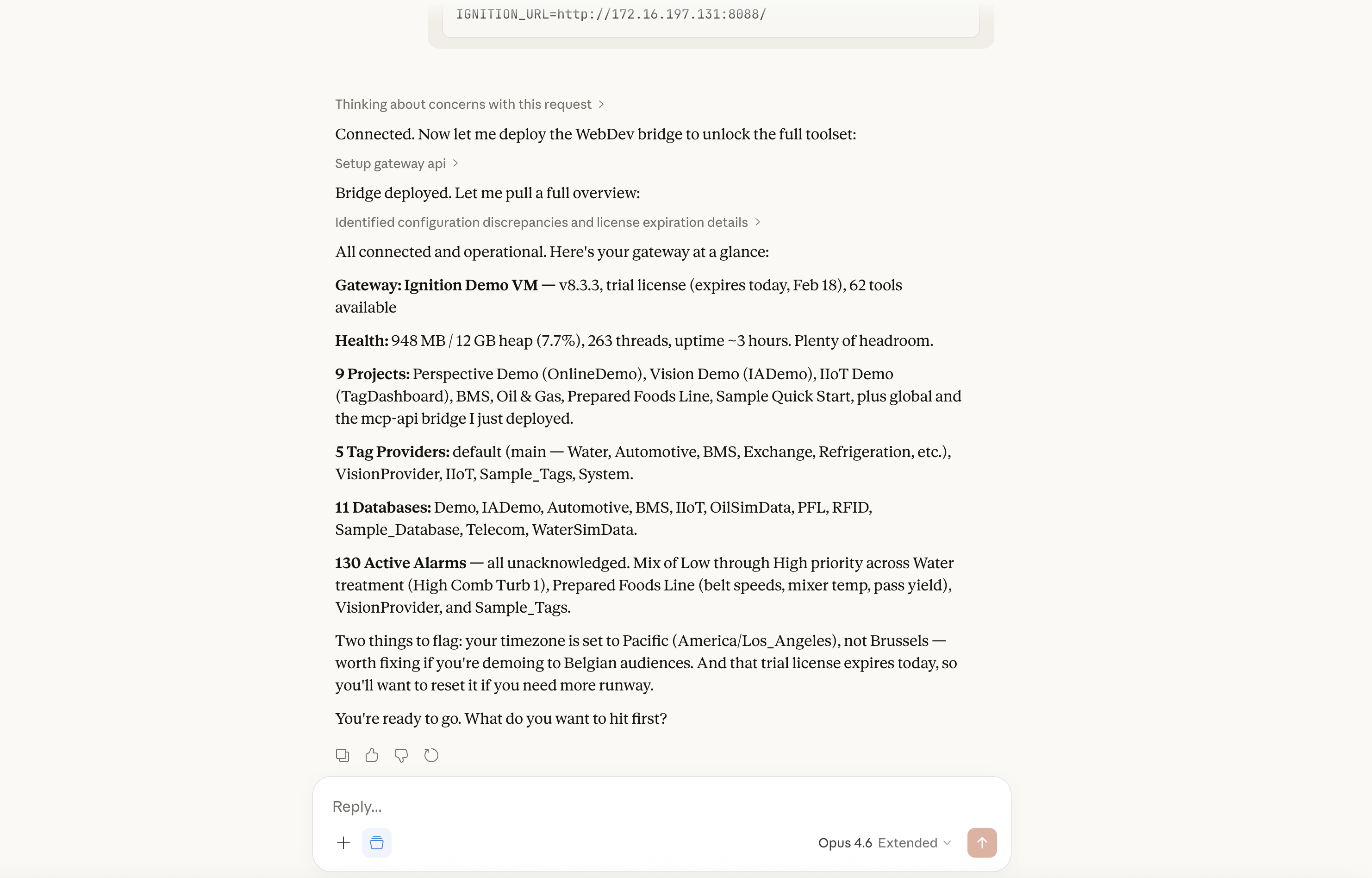
In this demo against a live Ignition gateway, Claude reported:
- Gateway: Ignition Demo VM — v8.3.3, trial license (expires today, Feb 18), 62 tools available
- Health: 948 MB / 12 GB heap (7.7%), 263 threads, uptime ~3 hours
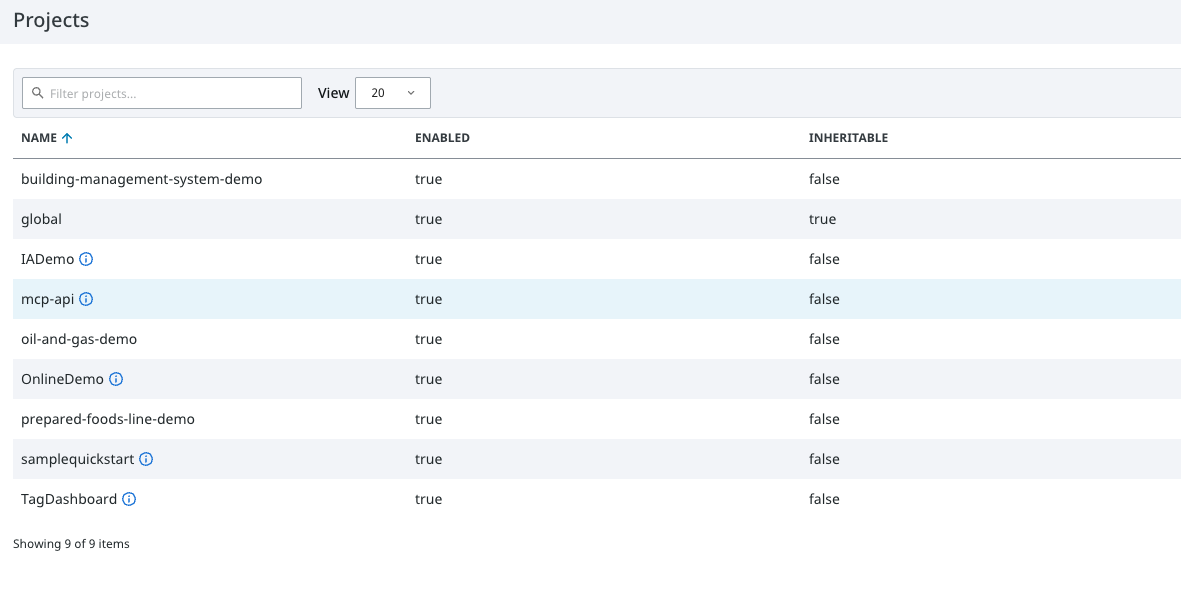
- 9 Projects: Perspective Demo, Vision Demo, IIoT Demo, BMS, Oil & Gas, Prepared Foods Line, Sample Quick Start, plus the mcp-api bridge it just deployed
- 5 Tag Providers: default (Water, Automotive, Refrigeration, etc.), IoT, Sample_Tags, System
- 11 Databases: Demo, IADemo, Automotive, BMS, IIoT, OilSimData, PFL, RFID, Sample_Database, Telecom, WaterSimData
- 130 Active Alarms: all unacknowledged, mix of Low through High priority across Water Treatment, Prepared Foods Line, and other areas
Claude then proactively flagged two issues without being asked: the gateway timezone is set to Pacific (America/Los_Angeles), not Brussels — worth fixing if you are demoing to Belgian audiences. And the trial license expires today, so you will want to reset it for more runway.
That is the experience. One drag-and-drop install, one prompt, and you have a conversational interface to your entire SCADA gateway.
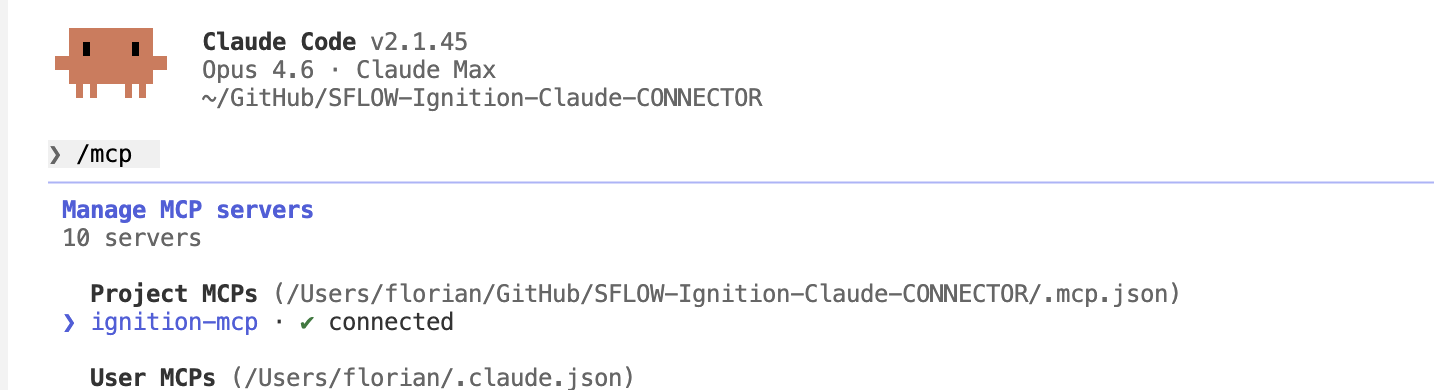
Also works from Claude Code. The same MCP server connects to Claude Code via the standard .mcp.json project configuration — giving the same 66 tools inside the terminal IDE.
What We Built
The Ignition MCP server exposes 66 tools organized into three tiers:
Native API tools cover gateway status, licensing, project operations, tag import/export, alarm pipeline management, module management, log access, gateway backup, generic resource operations, and Perspective session control. setup_gateway_api imports the bridge project; import_tags can fall back to the bridge.
WebDev bridge tools cover tag browse, tag read/write, tag history, active alarms, alarm journal, alarm acknowledgment, raw SQL queries, named queries, database schema inspection, audit logs, system.* function execution, JVM performance metrics, project resource read/write/patch, gateway settings, and translation management. The bundle generates 19 endpoints, with some endpoints serving more than one tool.
Connection management (4) provides get_setup_guide, configure_connection, list_connections and switch_connection for gateway profiles, setup guidance and connection switching. Keep this demo bundle disconnected from production.
Native API and setup tool names in the downloadable bundle
get_gateway_info              list_projects
get_project_details           list_tag_providers
export_tags                   get_alarm_pipelines
get_alarm_pipeline_detail     setup_gateway_api
list_alarm_journal_profiles   get_alarm_journal_profile
get_general_alarm_settings    list_alarm_notification_profiles
get_alarm_notification_profile
get_logs                      list_database_connections
get_database_connection       list_opc_connections
list_historian_configs        browse_entities
list_modules                  get_ignition_status
get_perspective_sessions      discover_resource_types
describe_resource_type        create_resource
get_resource                  modify_resource
delete_resource               rename_resource
request_config_scan           create_project
modify_project                delete_project
install_module                uninstall_module
toggle_module_state           create_gateway_backup
set_logger_level              activate_license
import_tags                   import_project_resource
list_project_resources        export_project
WebDev endpoints and their MCP tools in the downloadable bundle
Paths below are relative to /system/webdev/mcp-api/.
| Method | Endpoint | MCP tool |
|---|---|---|
| GET | alarms/status |
get_active_alarms |
| GET | alarms/journal |
get_alarm_journal |
| GET | tags/read |
read_tag_values |
| GET | tags/history |
query_tag_history |
| GET | audit/log |
query_audit_log |
| POST | alarms/acknowledge |
acknowledge_alarms |
| POST | tags/write |
write_tag_value |
| POST | db/query |
run_named_query |
| POST | script/execute |
execute_system_function |
| POST | db/execute |
execute_sql_query |
| POST | db/schema |
list_tables, describe_table |
| GET | tags/browse |
browse_tags |
| GET | system/performance |
get_system_performance |
| POST | tags/configure |
import_tags fallback |
| POST | project/resource-read |
read_project_resource |
| POST | project/resource-write |
write_project_resource |
| POST | project/resource-patch |
patch_project_resource |
| POST | gateway/settings |
modify_gateway_settings |
| POST | translation/manage |
manage_translations |
Built With Itself
During development, Claude Code had access to the same MCP server it was building. This created a feedback loop: write a tool, test it against the live gateway, see the result, fix the issue — all without leaving the IDE.
Combined with Playwright for browser automation, Claude Code could also see the Ignition gateway UI, verifying that tag writes, view deployments, and alarm states matched what the MCP tools reported. The MCP server was its own development environment.
This is a reusable pattern for any MCP server project: give the AI access to the system it is integrating with, and it can validate its own work in real time.
The question is: how do those WebDev endpoints exist on the gateway? You would normally need to create each endpoint manually in Ignition Designer. We did not.
The Self-Deploying API
This is the part that has never been shared publicly, and it is the most reusable pattern in the entire project.
The Problem
Ignition's native REST API covers gateway management, project operations, and tag import/export — roughly half of what an AI assistant would need to be genuinely useful. But the things that matter most for day-to-day operations are missing from the REST API entirely:
- Tag browsing — seeing what tags exist and their structure
- Tag reading/writing — getting live values, writing setpoints
- Alarm journal — querying historical alarm events
- SQL queries — running queries against connected databases
- Audit logs — who changed what, when
- Live view editing — modifying Perspective views programmatically
To access any of these, you need code running inside the gateway, typically Jython scripts in WebDev endpoints. Creating those endpoints means opening the Designer, navigating to the WebDev module, creating each endpoint folder, writing the scripts, and saving the project. The downloadable bundle generates 19 endpoints instead.
The Solution
setup_gateway_api() builds an Ignition project ZIP in memory containing the 19 WebDev endpoints and POSTs it to the gateway's project import API with overwrite=true. This replaces an existing mcp-api project. Inspect the generated project, obtain approval and have a backup and recovery plan before importing it, even on a demo gateway.
def _setup_webdev_project() -> dict:
    buf = io.BytesIO()
    with zipfile.ZipFile(buf, "w", zipfile.ZIP_DEFLATED) as zf:
        # Project manifest
        zf.writestr("project.json", json.dumps({
            "title": "mcp-api",
            "description": "MCP API bridge for tags, alarms, queries, and audit data",
            "enabled": True,
            "inheritable": False,
            "parent": "global"
        }))

        webdev_base = "com.inductiveautomation.webdev/resources"

        # Excerpt of the 19 generated endpoints
        _add_webdev_endpoint(zf, webdev_base, "alarms/status", _STATUS_DOGET)
        _add_webdev_endpoint(zf, webdev_base, "alarms/journal", _JOURNAL_DOGET)
        _add_webdev_endpoint(zf, webdev_base, "tags/read", _TAG_READ_DOGET)
        _add_webdev_endpoint(zf, webdev_base, "tags/browse", _TAG_BROWSE_DOGET)
        _add_webdev_endpoint(zf, webdev_base, "db/execute", _DB_EXECUTE_DOPOST, "doPost")
        _add_webdev_endpoint(zf, webdev_base, "audit/log", _AUDIT_LOG_DOGET)
        # Remaining endpoints omitted from this excerpt

    zip_bytes = buf.getvalue()
    url = f"{base}/data/api/v1/projects/import/mcp-api"
    resp = requests.post(
        url, params={"overwrite": "true"},
        data=zip_bytes, headers=hdrs, timeout=TIMEOUT
    )
Each endpoint folder in the ZIP contains the same structure that Ignition Designer would create:
com.inductiveautomation.webdev/resources/
├── alarms/
│   ├── status/
│   │   ├── resource.json        # Resource metadata
│   │   ├── config.json          # Enables only the active HTTP method
│   │   ├── doGet.py             # The actual Jython script
│   │   ├── doPost.py            # Stub (returns 405)
│   │   ├── doPut.py             # Stub
│   │   └── doDelete.py          # Stub
│   └── journal/
│       └── ...
├── tags/
│   ├── read/
│   ├── browse/
│   └── ...
└── db/
    └── execute/
        └── ...
Repeated calls replace the mcp-api project again and can overwrite local changes. Do not use this import as an unattended self-healing check. Review and approve each replacement and confirm how to restore the previous project.
Why This Matters Beyond Ignition
The pattern is general: any system with a project or plugin import API can be self-extended this way. If a platform lets you POST a ZIP or archive to create functionality, you can build that archive in-memory and deploy it programmatically. The AI does not just connect to the system — it provisions its own API surface inside the system.
This turns a limitation ("the REST API does not cover X") into a solved problem with a single function call.
The Three-Runtime Bridge
The architecture involves three separate runtimes that the MCP server bridges transparently:
┌──────────────┐       HTTP/REST        ┌────────────────────────────┐
│              │ ◄────────────────────► │      Ignition Gateway      │
│  Claude AI   │                        │                            │
│              │       MCP Protocol     │  ┌──────────────────────┐  │
│              │ ◄────────────────────► │  │   Jython 2.7 / Java  │  │
└──────────────┘                        │  │   WebDev Endpoints   │  │
       ▲                                │  └──────────────────────┘  │
       │  stdio                         │                            │
       ▼                                │  ┌──────────────────────┐  │
┌──────────────┐                        │  │   Native REST API    │  │
│  MCP Server  │ ◄────────────────────► │  │   (Java / Jetty)     │  │
│  Python 3.12 │       HTTP/REST        │  └──────────────────────┘  │
└──────────────┘                        └────────────────────────────┘
Python 3.12 runs the MCP server — modern Python with type hints, async support, and the full mcp SDK.
Jython 2.7 runs inside the Ignition gateway. The WebDev endpoint scripts use Python 2 syntax, have access to Ignition's system.* API, and operate within the Java runtime.
Java is the underlying Ignition runtime. Jython scripts interact with Java objects directly — java.util.Date for timestamps, Java Maps for request parameters, Java arrays for function arguments.
The hard part is not the HTTP calls. It is the Jython 2.7 scripts embedded as string constants in the Python 3 MCP server. Every WebDev endpoint script is a triple-quoted string in server.py that must be valid Jython 2.7 — Python 2 exception syntax (except Exception, e:), Java type handling, and Ignition-specific API calls.
# In server.py (Python 3) — this string runs inside Ignition (Jython 2.7)
_TAG_READ_DOGET = '''
    from com.inductiveautomation.ignition.common import BasicDataset
    import json

    try:
        paths = request["params"].get("paths", "")
        tag_paths = [p.strip() for p in paths.split(",") if p.strip()]
        values = system.tag.readBlocking(tag_paths)

        results = []
        for i, qv in enumerate(values):
            results.append({
                "path": tag_paths[i],
                "value": str(qv.value),
                "quality": str(qv.quality),
                "timestamp": str(qv.timestamp)
            })

        return {"json": json.dumps({"tags": results})}
    except Exception, e:
        return {"json": json.dumps({"error": str(e)})}
'''
The three-way type check is one of the most defensive patterns in the codebase. Request bodies arriving at WebDev endpoints can be a Python string, a Python dict, or a Java Map — depending on the content type and how Ignition parsed the request:
# Handle the three possible types a WebDev request body can be
if isinstance(body, (str, unicode)):
    data = json.loads(body)
elif isinstance(body, dict):
    data = body
else:
    # Java Map — convert through Ignition's JSON encoder
    data = json.loads(system.util.jsonEncode(body))
This kind of runtime bridging is invisible to Claude. It calls read_tag_values and gets back JSON.
What This Looks Like at Scale
The gateway overview from the quickstart is just the beginning. With 66 tools available, Claude adapts its approach based on what it finds.
We documented one example in detail: AI Investigates a Chemical Feed Pump Failure walks through a scenario where Claude diagnosed a 6-alarm cascade across 3 process areas on a live water treatment gateway — tracing from symptom alarms back to a single chemical feed pump failure in under 90 seconds.
That investigation used get_active_alarms to see the alarm picture, read_tag_values to check live process values, get_alarm_journal to establish event ordering, and browse_tags to discover related equipment, chaining tools based on what each result revealed.
The same pattern applies across workflow categories:
- Monitoring: active alarms, tag values, JVM metrics, gateway health — Claude builds situational awareness before you ask a specific question
- Reporting: alarm journal, audit logs, SQL queries, tag history — multi-source data pulled and composed into structured summaries
- Configuration: tag import/export, project resource editing, Perspective view deployment, gateway settings — changes applied programmatically with immediate verification
- Administration: module status, license info, backup, project management — fleet-level operations across dev, staging, and production gateways
The key is adaptive reasoning. Claude decides which tools to call based on what it finds. An alarm investigation might start with get_active_alarms, but if the results point to a tag provider issue, Claude pivots to browse_tags and get_gateway_info without being told to. The tool selection emerges from the conversation, not from a predefined script.
CLI vs MCP — Complementary Tools
We also built a CLI for Ignition with 75+ commands covering the same gateway operations. A natural question: when would you use which?
CLI = deterministic, scriptable, CI/CD-friendly. When you need predictable, repeatable operations — tag snapshots on a schedule, automated compliance checks, fleet-wide status queries in a pipeline — the CLI gives you typed commands with explicit parameters and exit codes.
# Deterministic — same command, same result, every time
ignition-cli tag export --output tags/snapshot.json --gateway prod
ignition-cli gateway modules --quarantined --gateway prod -f json
MCP = exploratory, context-aware, multi-step reasoning. When you want Claude to investigate an unfamiliar gateway, diagnose an issue by chaining multiple queries, or compose a report from several data sources — the MCP server lets the AI discover what is available and adapt its approach.
They share the same REST API foundation but serve different workflows. The CLI is for automation you can define in advance. The MCP server is for work that benefits from reasoning about results before deciding what to do next.
Security and Honest Limitations
This tool gives AI write access to industrial control systems. That is not something to take lightly.
What We Built In
Native API authentication is not bridge authentication. The MCP client sends an X-Ignition-API-Token header in KeyName:KeyValue format. However, the generated WebDev methods set require-auth and require-https to false and do not validate that token in their scripts. A caller reaching the bridge directly does not gain the native API's permission checks merely because this client sends a token.
Credential storage and transmission. Saved gateway profiles are stored in ~/.ignition-mcp/config.json. The server attempts chmod 600 but ignores permission-setting errors, so verify the file's access permissions on your system. The token is transmitted to the configured gateway in the X-Ignition-API-Token header. Use HTTPS with certificate verification and keep credentials out of conversations and shared logs.
Path traversal protection. The project resource read/write tools validate all file paths with os.path.realpath() and a prefix check against the projects directory before any filesystem operation:
target = os.path.realpath(os.path.join(projects_dir, project, resource_path))
if not target.startswith(os.path.realpath(projects_dir) + os.sep):
    return {"json": json.dumps({"error": "Path traversal blocked"})}
Function-prefix check, not a safety boundary. execute_system_function checks for a system. prefix in the MCP server, and the generated script/execute endpoint repeats that check inside the gateway. The endpoint then resolves attributes and invokes the requested function with caller-supplied arguments. This permits system.* reads, writes and configuration operations; it is not a narrow allowlist or a guarantee against harmful execution:
if not func_name.startswith("system."):
    return {"json": json.dumps({"error": "Only system.* functions are allowed"})}
Path validation is not atomic persistence. patch_project_resource validates patch paths before applying changes in memory, then opens the target file for writing. The write is not transactional or an atomic replacement. An interrupted or failed write can leave incomplete content; keep a recoverable copy before editing.
What You Should Know
This is not a toy. Writing a tag value on a SCADA system can open a valve, start a pump, or change a setpoint on a running process. The MCP server includes write tools by design — because that is what makes it useful — but deploying write access to a production gateway requires the same rigor as giving any system integration write access.
Do not treat this bundle as read-only. Native API key permissions do not restrict the generated bridge's write, SQL or function-execution endpoints. Before any use beyond an isolated demo, implement and verify server-side authentication, operation-level authorization and HTTPS enforcement on the bridge itself.
Configure approval for writes explicitly. Tool confirmation depends on the MCP client and its configuration; it is not guaranteed for every call. Require explicit approval for write-capable tools and verify that approval cannot be skipped by an existing allow rule. Client approval does not replace server-side permissions or make this demo bundle suitable for production.
Takeaways
Industrial systems don't have to be AI-isolated. MCP bridges the gap between SCADA systems and AI assistants without replacing existing tools. Ignition Designer, Vision, and Perspective remain the primary interfaces. The MCP server adds a new access channel for the tasks where conversational AI genuinely helps — exploration, diagnosis, reporting.
Self-deploying APIs are a pattern, not a hack. Any system with a project or plugin import API can be extended this way. Build the archive in-memory, POST it to the import endpoint, and your new API surface is live. The pattern works for Ignition, and it works for other platforms with similar import mechanisms.
The bridge between Python 3 and Jython 2.7 is the hard part. Not the HTTP calls — those are straightforward. The difficulty is embedding valid Jython 2.7 scripts as string constants in a Python 3 codebase, handling Java Map types, Python 2 exception syntax, java.util.Date timestamps, and Ignition-specific API conventions. Two languages, three runtimes, one server.py.
Distribution matters as much as capability. The .mcpb bundle eliminates manual configuration — drag-and-drop install reaches operations engineers who would never touch a terminal, a pip install, or a JSON config file. The best MCP server is useless if the people who need it cannot install it.
Enforce the boundary before connecting. A read-only workflow needs server-side restrictions that also cover direct bridge calls. The downloadable bundle does not provide that boundary; keep it on an isolated demo gateway rather than relying on prompts or native API key permissions.
Get Started
The Ignition MCP server is available as an .mcpb bundle for Claude Desktop or as a standard MCP server for Claude Code:
- Install the demo bundle: drag
ignition.mcpbinto Claude Desktop's Extensions settings - Related: Ignition CLI for deterministic automation
The demo requires Ignition 8.3+ with the REST API and WebDev module enabled. The warnings above apply to the generated bridge regardless of how the MCP client is installed.
Have questions about deploying this in your environment? Get in touch.
Want to discuss a project like this?
SFLOW helps companies implement practical AI solutions — from custom platforms to industrial integrations with your existing systems.