
Giving AI Direct Access to Industrial Control Systems: Building an MCP Server for Ignition
What is SCADA?
SCADA (Supervisory Control and Data Acquisition) is the software that monitors and controls industrial processes — manufacturing lines, water treatment plants, building automation, energy grids. If a facility has sensors, PLCs, and a control room screen, SCADA ties it all together. Ignition, by Inductive Automation, is one of the most widely deployed SCADA platforms in the world.
Industrial SCADA systems are the most data-rich yet most isolated software in enterprise IT. An Ignition gateway sits on mountains of real-time tag data, alarm history, audit trails, and process databases — but accessing any of it requires specialized tools. The Ignition Designer for configuration. Vision or Perspective clients for visualization. Custom Jython scripts for anything beyond the standard workflows.
None of these tools are accessible to an AI assistant. Claude cannot open the Designer. It cannot browse your tag tree. It cannot query your alarm journal or check which modules are running on your production gateway.
What if it could?
We built an MCP server that gives Claude direct, live access to Ignition gateways — 66 tools that cover everything from reading tag values to deploying Perspective views. Here is what it looks like to go from zero to a full gateway overview in under two minutes.
Install in 60 Seconds
Most MCP servers require cloning a repo, installing Python dependencies, and editing JSON configuration files. That is a non-starter for operations engineers who need tools, not setup rituals.
The Ignition MCP server ships as an .mcpb file — a self-contained bundle that Claude Desktop can install with drag-and-drop. No terminal. No pip install. No JSON editing.
Here is the full install flow:
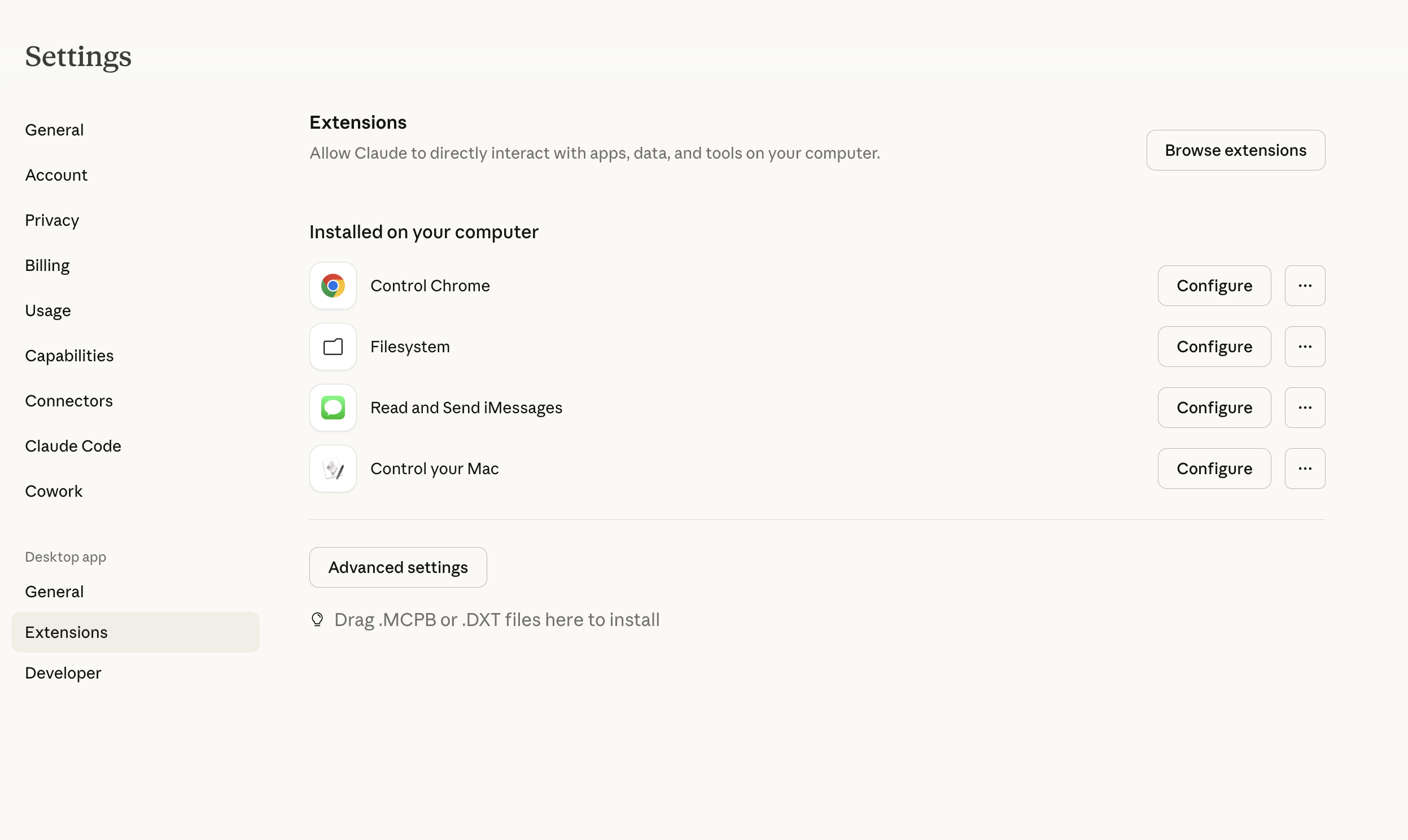
1. Open Extensions. In Claude Desktop settings, navigate to Extensions. You will see any existing extensions and a drop zone at the bottom.
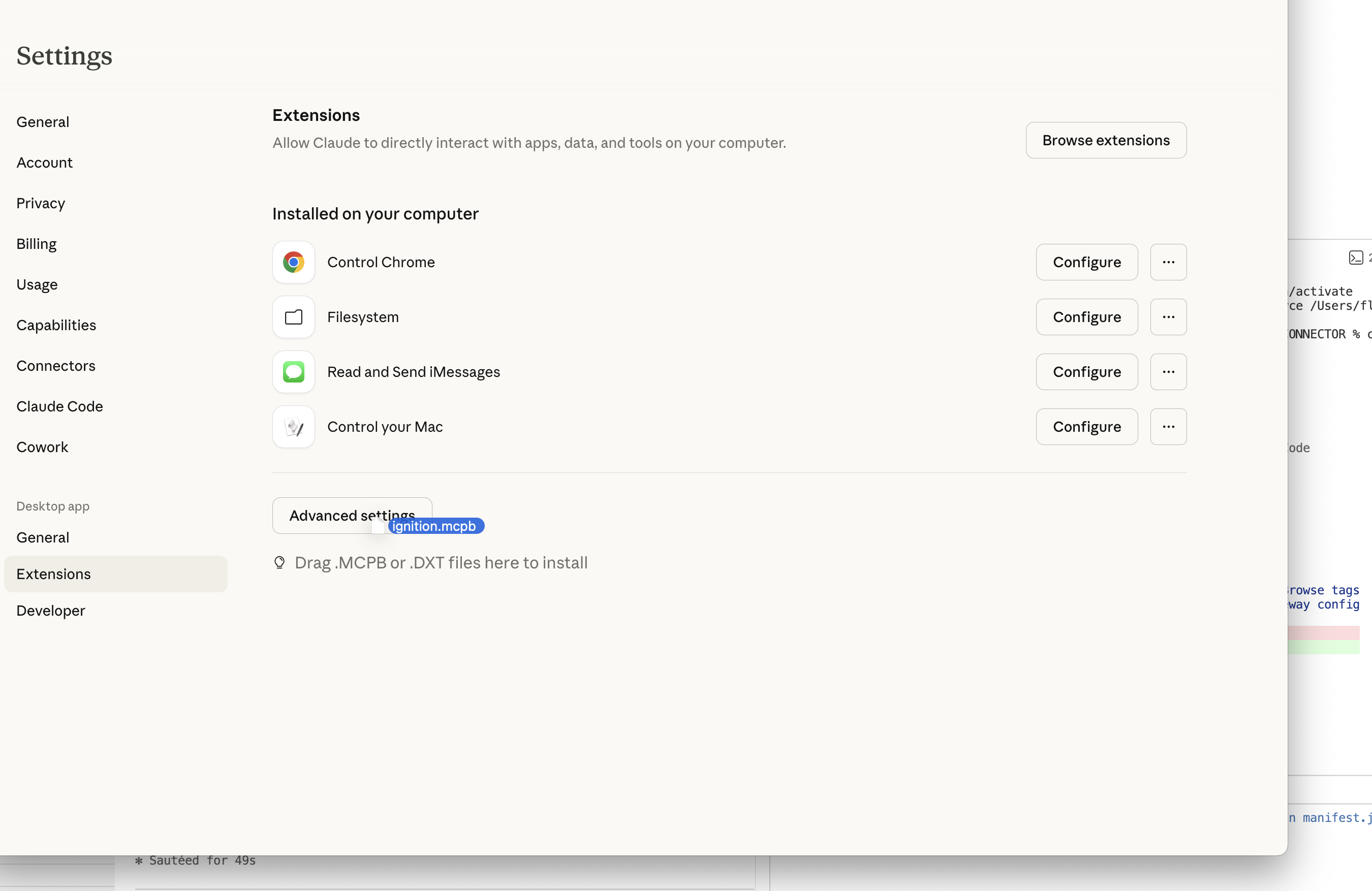
2. Drag the .mcpb file. Drag the ignition.mcpb bundle from Finder onto the drop zone. Claude Desktop recognizes the format immediately.
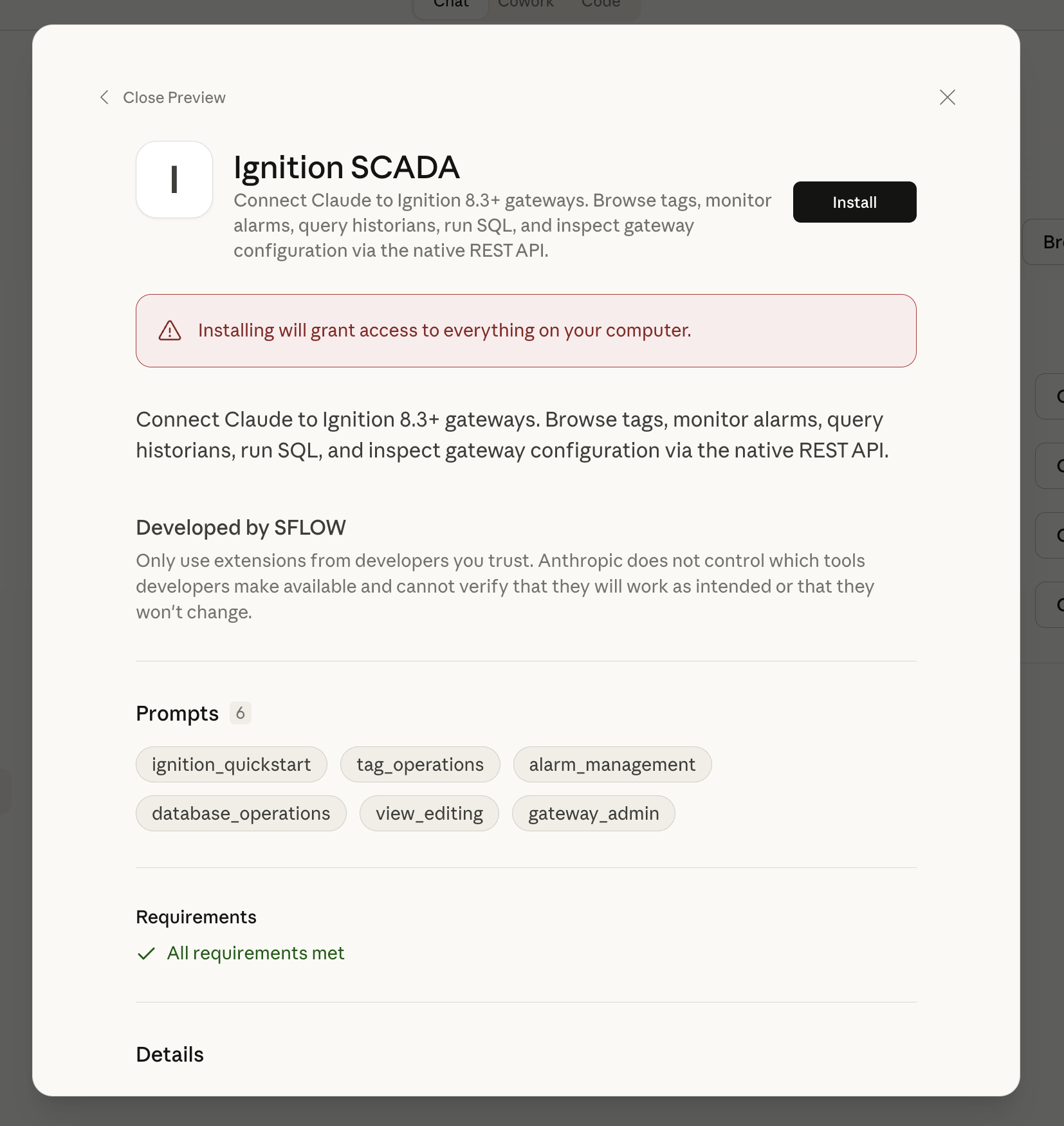
3. Preview the extension. Before installing, you see exactly what you are getting: the extension name, description, 6 built-in prompts, and a requirements check.
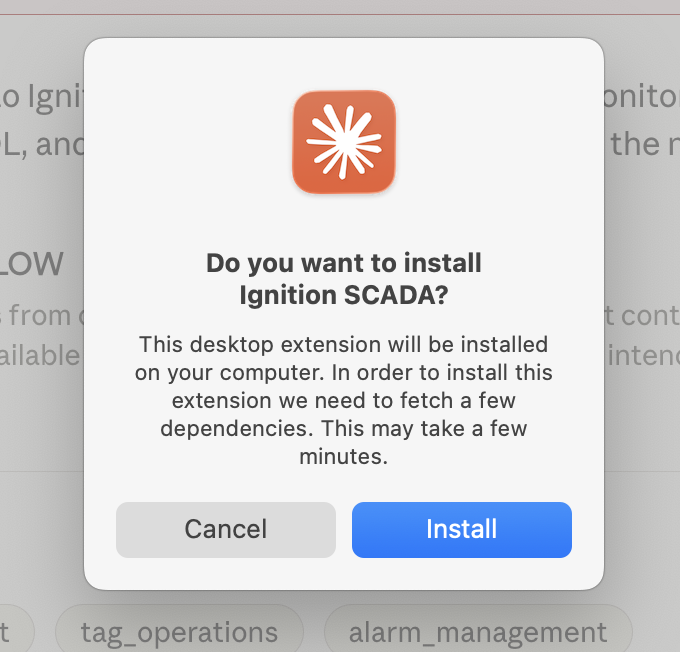
4. Confirm install. One click. Claude Desktop fetches dependencies in the background.
5. Configure. Two fields: your gateway URL and an API token. Both can be left blank if you prefer to configure them through chat — Claude will walk you through it.
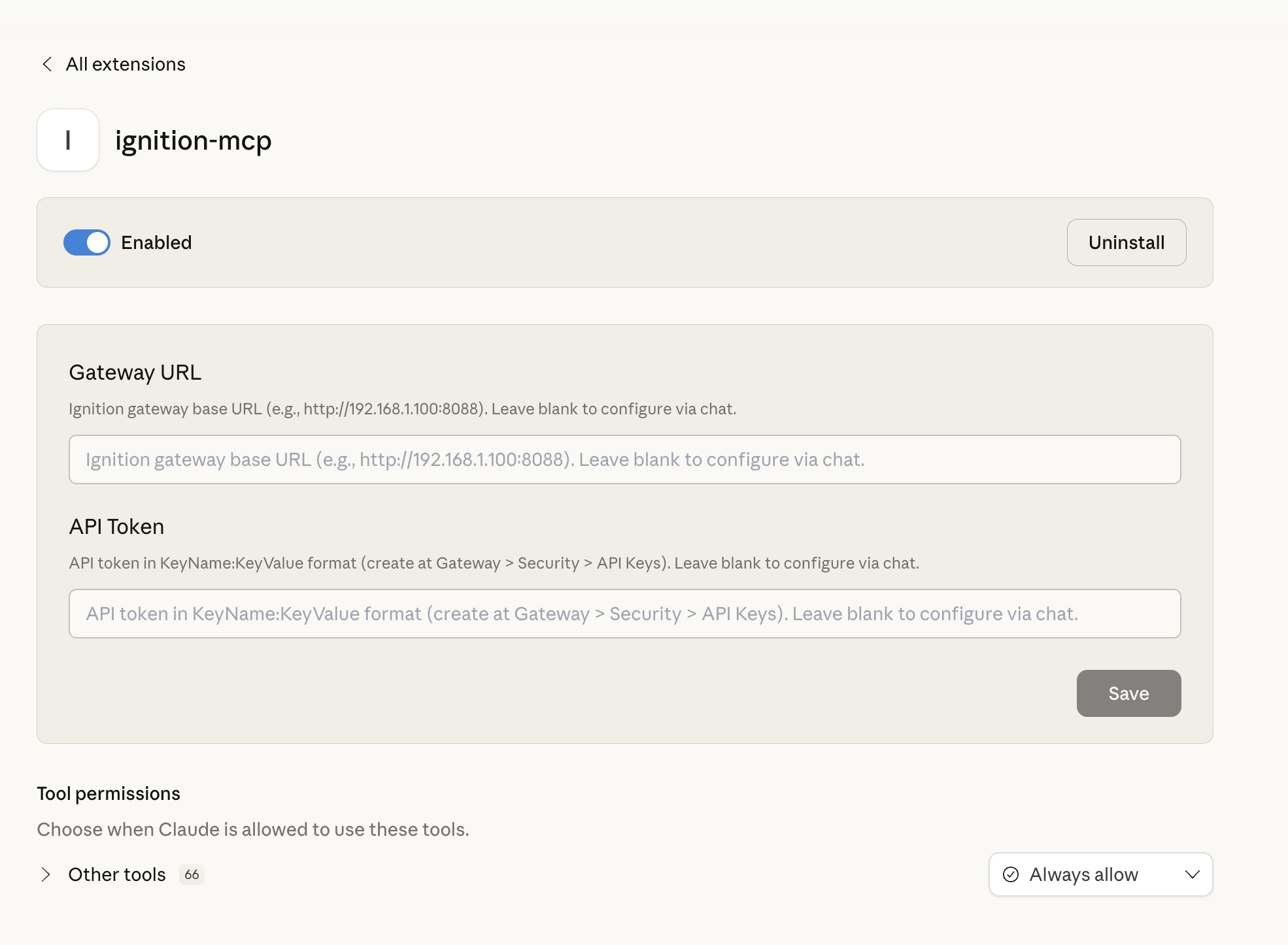
6. Tool permissions. All 66 tools appear with granular permission controls. Set them to "Always allow", require confirmation per-call, or disable individual tools entirely.
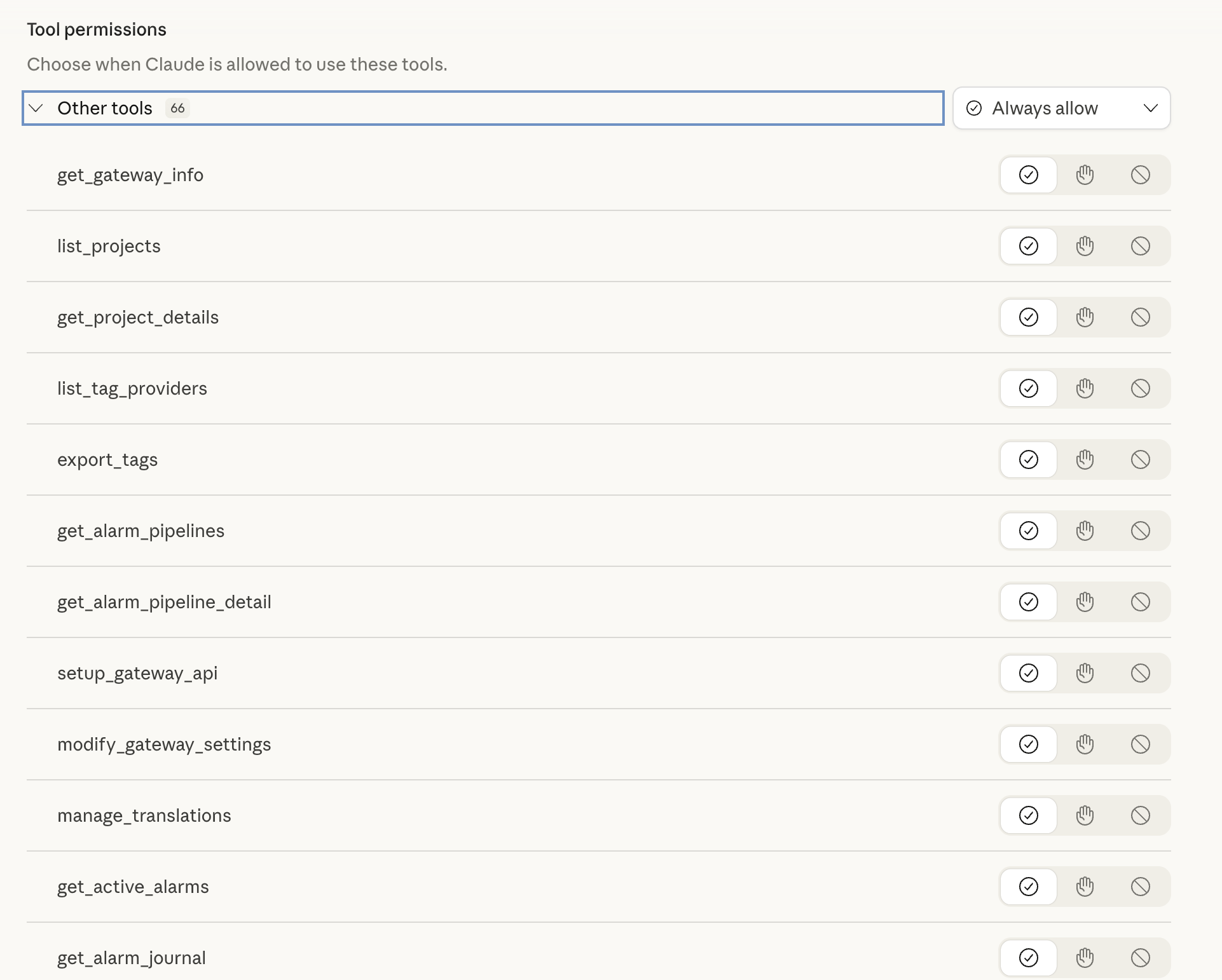
That is the entire setup. No virtual environments, no path configuration, no claude_desktop_config.json surgery. The .mcpb format handles dependency resolution, server startup, and tool registration automatically.
First Conversation: From Zero to Gateway Overview
With the extension installed, the Ignition connector shows up as a data source in Claude Desktop's chat menu — right alongside files, Google Drive, and GitHub.
Toggle the connector on. Click the + button in any chat, open Connectors, and enable "Ignition SCADA".
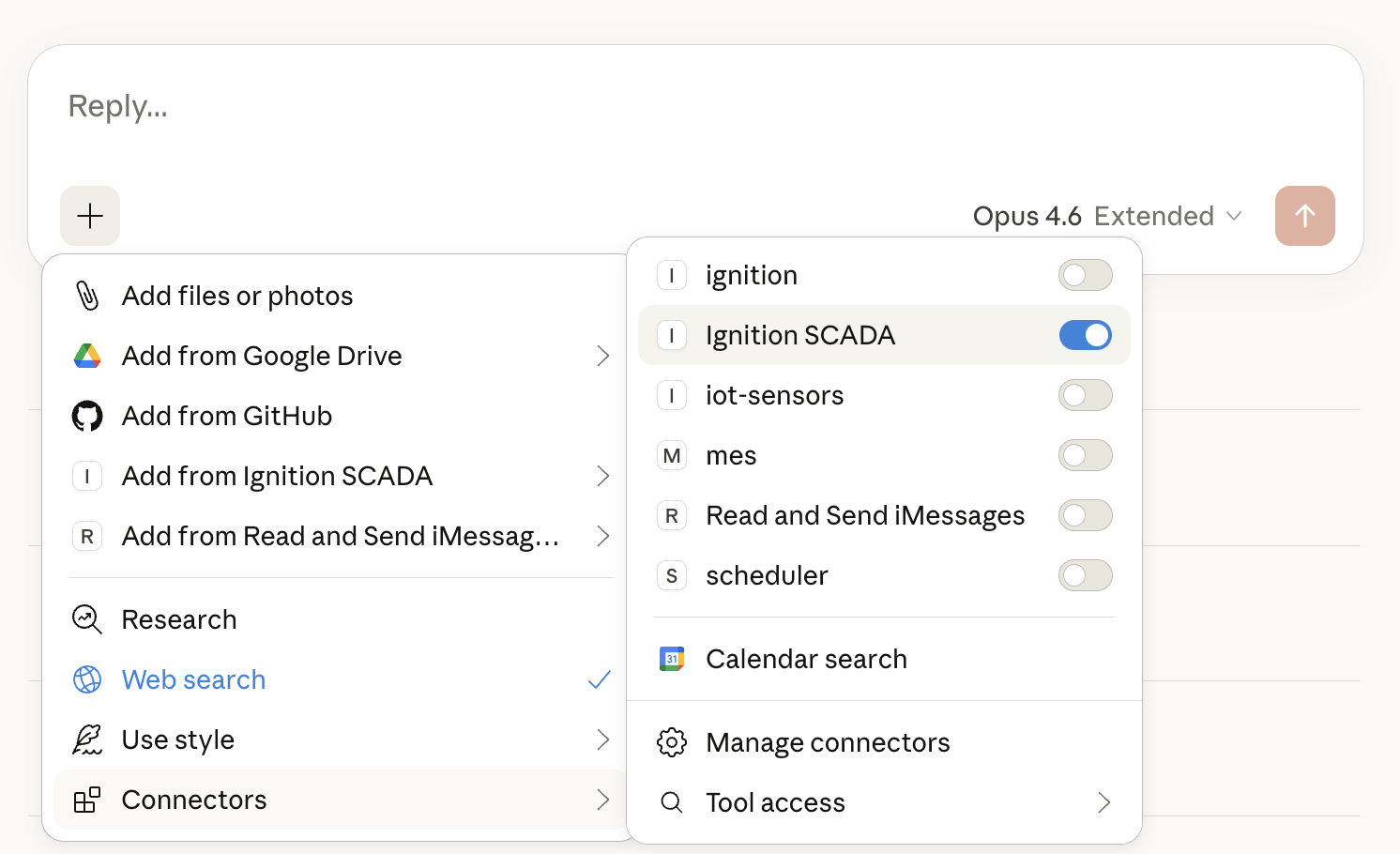
Pick a starting point. The extension ships with 6 built-in prompts — domain-specific starter kits that attach the right context to your conversation: Ignition quickstart, Tag operations, Alarm management, Database operations, View editing, and Gateway admin.
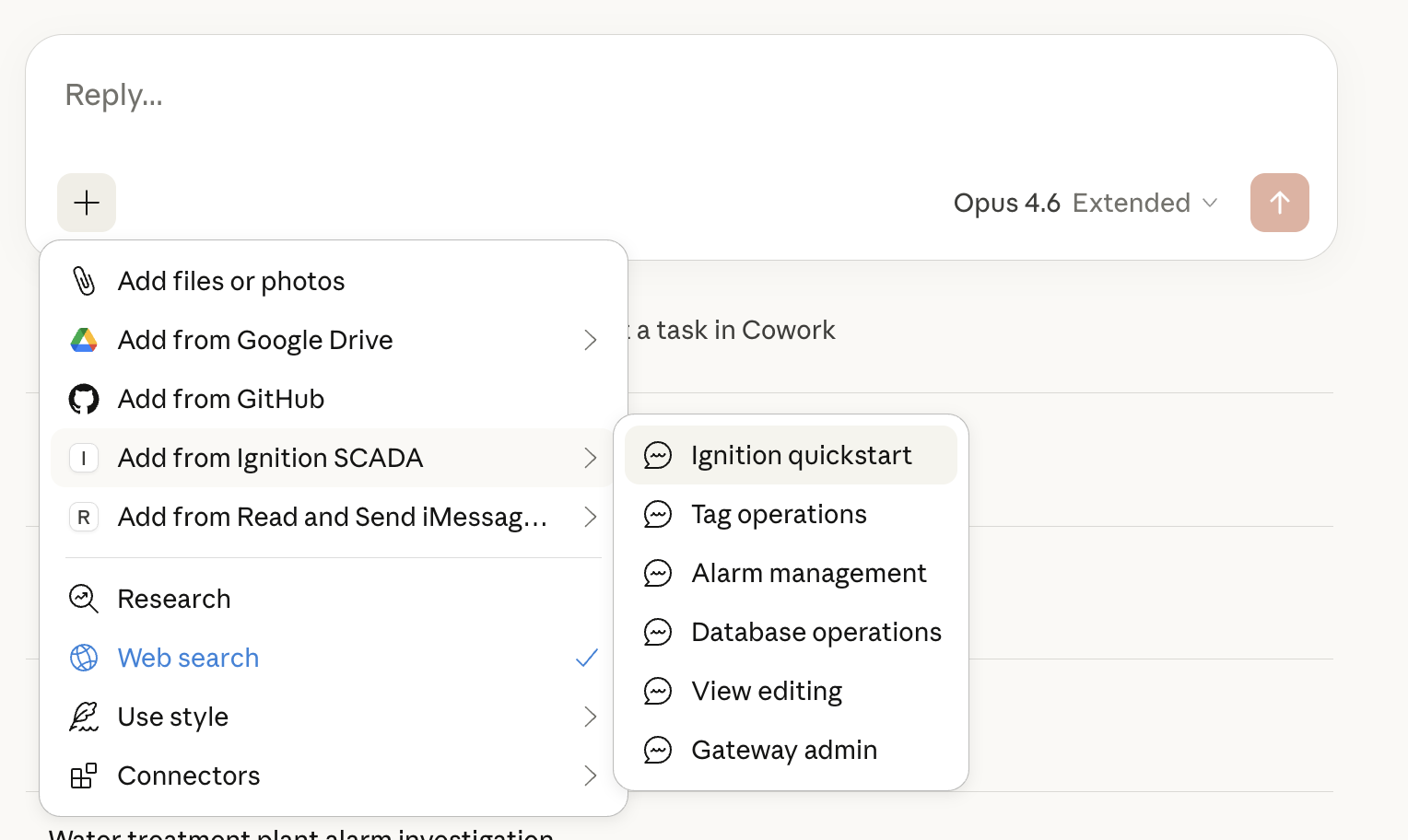
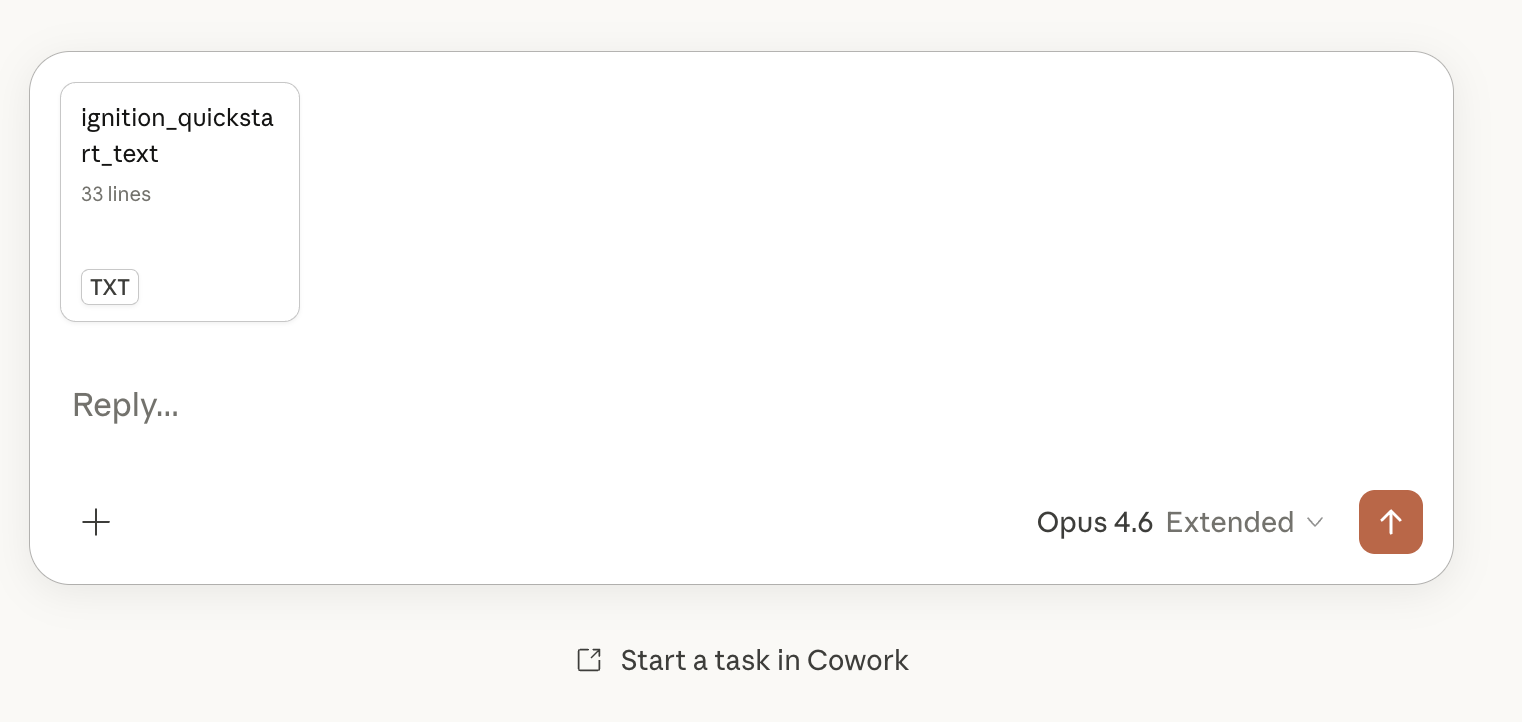
Launch the quickstart. Selecting "Ignition quickstart" attaches a 33-line prompt to your chat that tells Claude to connect to the gateway, deploy the WebDev bridge if needed, and produce a full system overview.
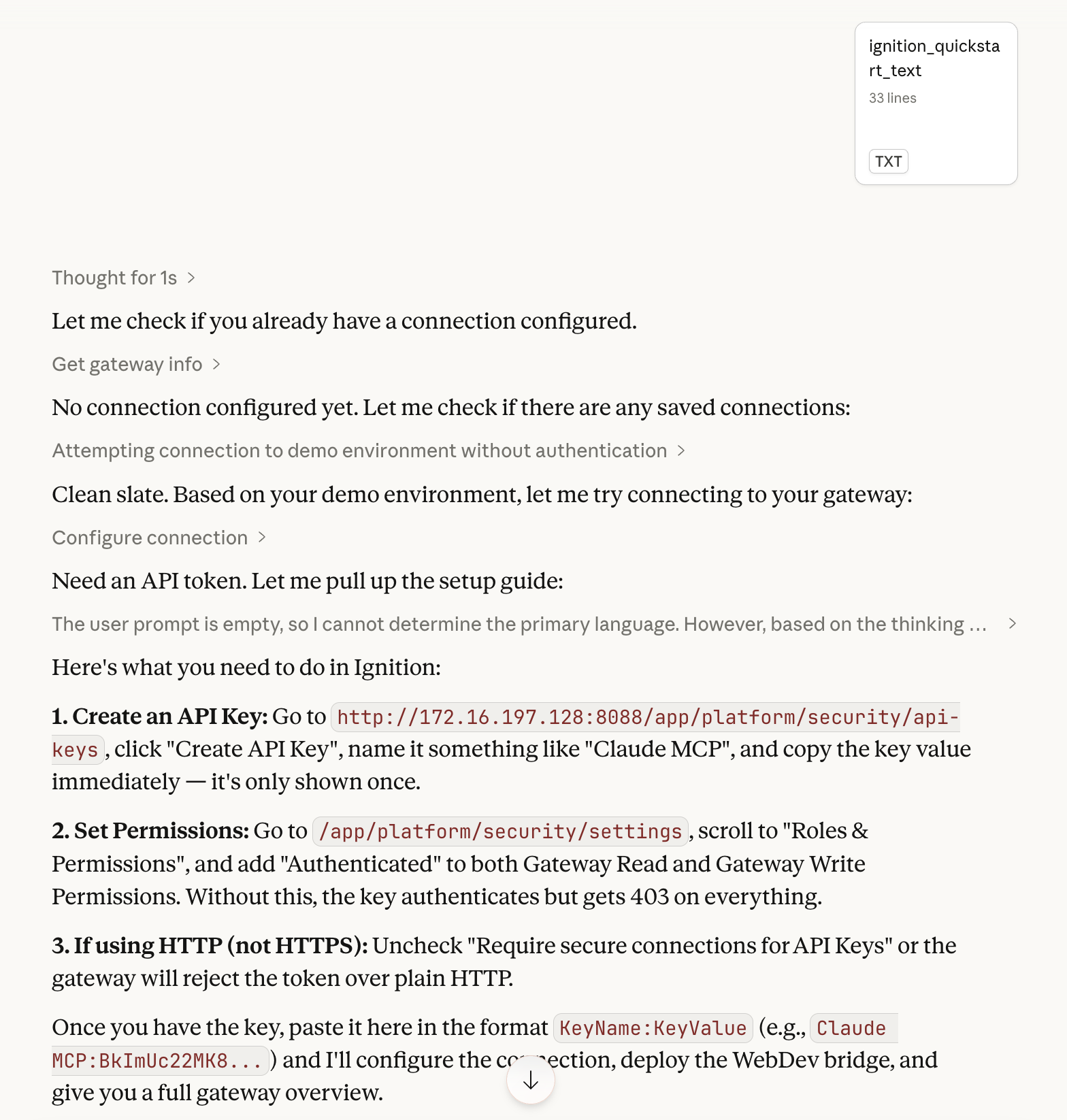
Claude walks through setup. With no connection configured, Claude detects a clean slate and guides you through creating an API key — including the exact gateway URLs to visit and the permissions to set.
Full gateway overview. Once connected, Claude calls setup_gateway_api() to deploy the WebDev bridge, then pulls data from multiple tools to produce a complete picture of the gateway:
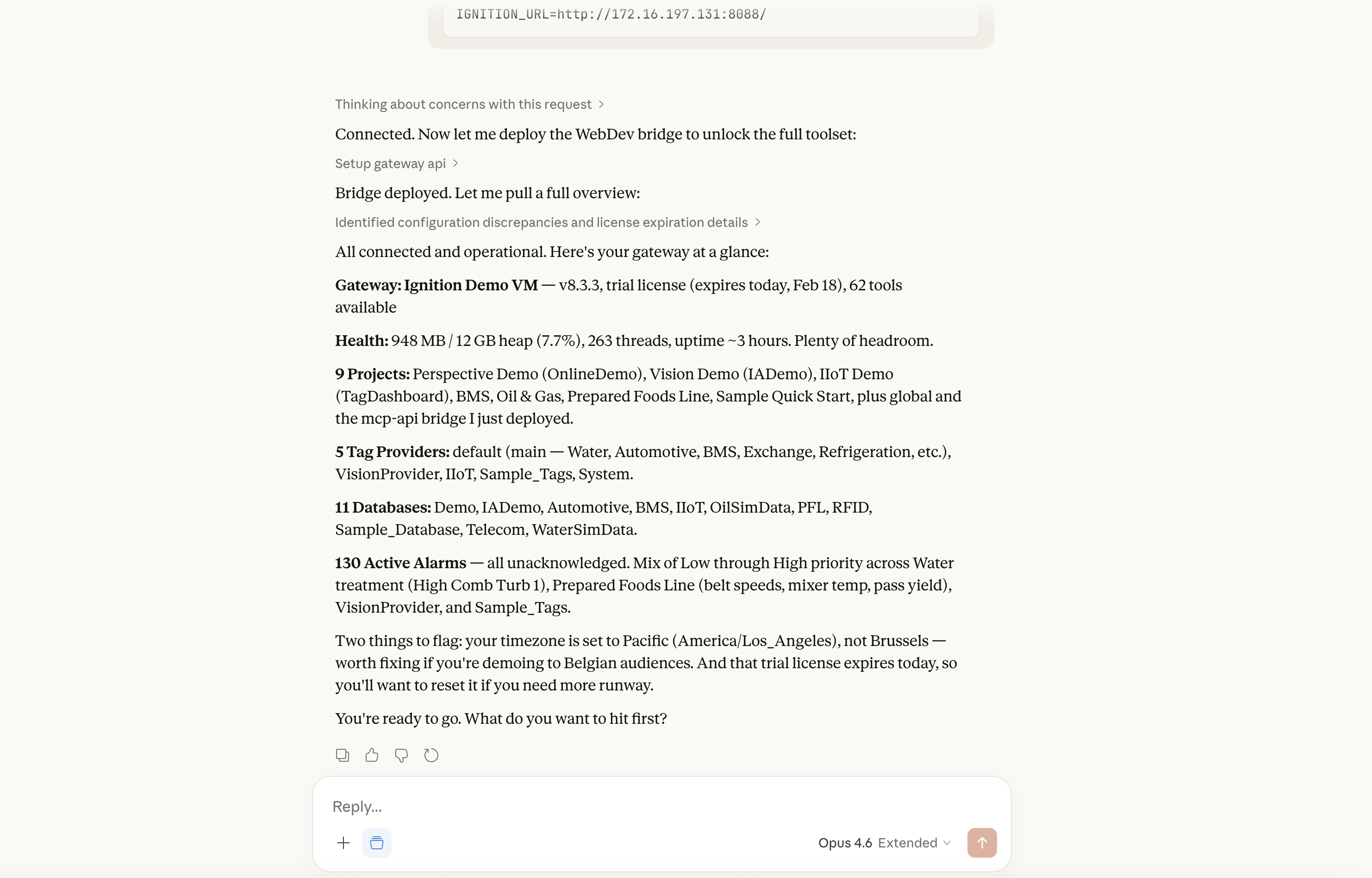
In this demo against a live Ignition gateway, Claude reported:
- Gateway: Ignition Demo VM — v8.3.3, trial license (expires today, Feb 18), 62 tools available
- Health: 948 MB / 12 GB heap (7.7%), 263 threads, uptime ~3 hours
- 9 Projects: Perspective Demo, Vision Demo, IIoT Demo, BMS, Oil & Gas, Prepared Foods Line, Sample Quick Start, plus the mcp-api bridge it just deployed

- 5 Tag Providers: default (Water, Automotive, Refrigeration, etc.), IoT, Sample_Tags, System
- 11 Databases: Demo, IADemo, Automotive, BMS, IIoT, OilSimData, PFL, RFID, Sample_Database, Telecom, WaterSimData
- 130 Active Alarms: all unacknowledged, mix of Low through High priority across Water Treatment, Prepared Foods Line, and other areas
Claude then proactively flagged two issues without being asked: the gateway timezone is set to Pacific (America/Los_Angeles), not Brussels — worth fixing if you are demoing to Belgian audiences. And the trial license expires today, so you will want to reset it for more runway.
That is the experience. One drag-and-drop install, one prompt, and you have a conversational interface to your entire SCADA gateway.
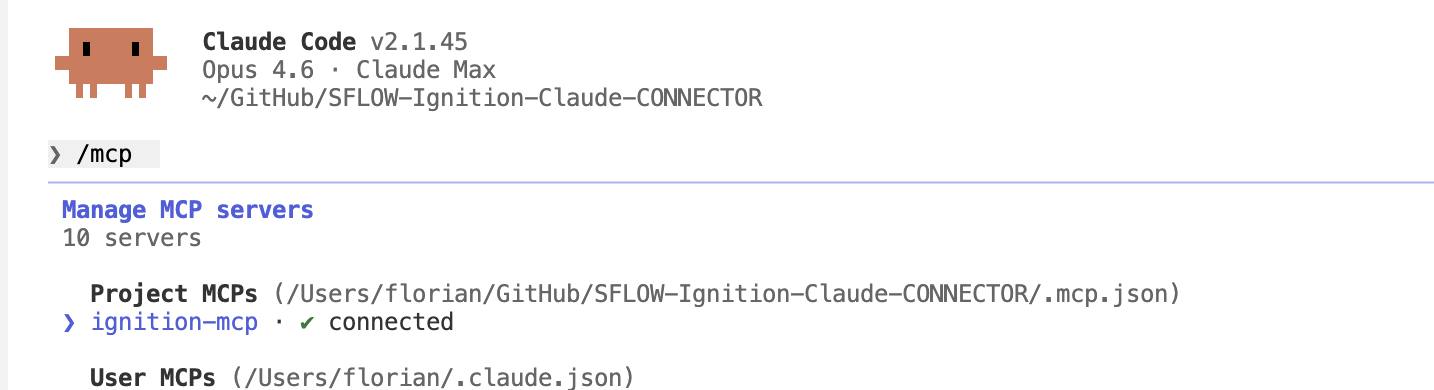
Also works from Claude Code. The same MCP server connects to Claude Code via the standard .mcp.json project configuration — giving the same 66 tools inside the terminal IDE.
What We Built
The Ignition MCP server exposes 66 tools organized into three tiers:
Native tools (37) call Ignition's built-in REST API directly. These cover gateway status, licensing, project CRUD, tag import/export, alarm pipeline management, module management, log access, gateway backup, generic resource CRUD across all 30+ resource types, and Perspective session control.
WebDev bridge tools (25) cover capabilities that the native REST API does not expose: tag browse, tag read/write, tag history, active alarms, alarm journal, alarm acknowledgment, raw SQL queries, named queries, database schema inspection, audit logs, system.* function execution, JVM performance metrics, project resource read/write/patch, gateway settings, and translation management.
Connection management (4) handles multi-gateway profiles, setup guidance, and connection switching — so Claude can work with dev, staging, and production gateways in the same session.
Full tool listing — Native (37)
Gateway & Status    Project Management    Tag Operations
─────────────────   ──────────────────    ──────────────
get_gateway_info    list_projects         export_tags
get_gateway_status  get_project           import_tags
get_license_info    create_project
get_modules         delete_project        Alarm & Logging
restart_gateway     import_project        ──────────────
get_logs            export_project        get_alarm_pipelines
backup_gateway                            get_logs
Full tool listing — WebDev Bridge (25)
Tag Operations      Alarms & History      Data Access
─────────────────   ──────────────────    ──────────────
browse_tags         get_active_alarms     execute_query
read_tags           get_alarm_journal     run_named_query
write_tags          acknowledge_alarms    get_db_schema
configure_tags                            get_audit_log
get_tag_history     System & Config
                    ──────────────────    View Editing
                    execute_function      ──────────────
                    get_jvm_metrics       read_resource
                    get_gateway_settings  write_resource
                    manage_translations   patch_resource
Built With Itself
During development, Claude Code had access to the same MCP server it was building. This created a feedback loop: write a tool, test it against the live gateway, see the result, fix the issue — all without leaving the IDE.
Combined with Playwright for browser automation, Claude Code could also see the Ignition gateway UI, verifying that tag writes, view deployments, and alarm states matched what the MCP tools reported. The MCP server was its own development environment.
This is a reusable pattern for any MCP server project: give the AI access to the system it is integrating with, and it can validate its own work in real time.
The question is: how do those 25 WebDev bridge tools exist on the gateway? You would normally need to create each endpoint manually in Ignition Designer. We did not.
The Self-Deploying API
This is the part that has never been shared publicly, and it is the most reusable pattern in the entire project.
The Problem
Ignition's native REST API covers gateway management, project operations, and tag import/export — roughly half of what an AI assistant would need to be genuinely useful. But the things that matter most for day-to-day operations are missing from the REST API entirely:
- Tag browsing — seeing what tags exist and their structure
- Tag reading/writing — getting live values, writing setpoints
- Alarm journal — querying historical alarm events
- SQL queries — running queries against connected databases
- Audit logs — who changed what, when
- Live view editing — modifying Perspective views programmatically
To access any of these, you need code running inside the gateway — typically Jython scripts in WebDev endpoints. Creating those endpoints means opening the Designer, navigating to the WebDev module, creating each endpoint folder, writing the scripts, and saving the project. For 20 endpoints, that is a significant amount of manual work.
The Solution
setup_gateway_api() builds a complete Ignition project ZIP in-memory — containing all 20 WebDev endpoints — and POSTs it to the gateway's project import API. One REST call. Endpoints go live instantly. No Designer, no file system access, no restart.
def _setup_webdev_project() -> dict:
    buf = io.BytesIO()
    with zipfile.ZipFile(buf, "w", zipfile.ZIP_DEFLATED) as zf:
        # Project manifest
        zf.writestr("project.json", json.dumps({
            "title": "mcp-api",
            "description": "MCP API bridge for tags, alarms, queries, and audit data",
            "enabled": True,
            "inheritable": False,
            "parent": "global"
        }))

        webdev_base = "com.inductiveautomation.webdev/resources"

        # 20 endpoints — alarms, tags, queries, audit, views...
        _add_webdev_endpoint(zf, webdev_base, "alarms/status", _STATUS_DOGET)
        _add_webdev_endpoint(zf, webdev_base, "alarms/journal", _JOURNAL_DOGET)
        _add_webdev_endpoint(zf, webdev_base, "tags/read", _TAG_READ_DOGET)
        _add_webdev_endpoint(zf, webdev_base, "tags/browse", _TAG_BROWSE_DOGET)
        _add_webdev_endpoint(zf, webdev_base, "query/execute", _QUERY_DOPOST)
        _add_webdev_endpoint(zf, webdev_base, "audit/log", _AUDIT_DOGET)
        # ... 14 more endpoints ...

    zip_bytes = buf.getvalue()
    url = f"{base}/data/api/v1/projects/import/mcp-api"
    resp = requests.post(
        url, params={"overwrite": "true"},
        data=zip_bytes, headers=hdrs, timeout=TIMEOUT
    )
Each endpoint folder in the ZIP contains the same structure that Ignition Designer would create:
com.inductiveautomation.webdev/resources/
├── alarms/
│   ├── status/
│   │   ├── resource.json        # Resource metadata
│   │   ├── config.json          # Enables only the active HTTP method
│   │   ├── doGet.py             # The actual Jython script
│   │   ├── doPost.py            # Stub (returns 405)
│   │   ├── doPut.py             # Stub
│   │   └── doDelete.py          # Stub
│   └── journal/
│       └── ...
├── tags/
│   ├── read/
│   ├── browse/
│   └── ...
└── query/
    └── execute/
        └── ...
The operation is idempotent — calling it repeatedly just overwrites the mcp-api project with the same content. Safe to run during setup, after gateway restarts, or as a self-healing check.
Why This Matters Beyond Ignition
The pattern is general: any system with a project or plugin import API can be self-extended this way. If a platform lets you POST a ZIP or archive to create functionality, you can build that archive in-memory and deploy it programmatically. The AI does not just connect to the system — it provisions its own API surface inside the system.
This turns a limitation ("the REST API does not cover X") into a solved problem with a single function call.
The Three-Runtime Bridge
The architecture involves three separate runtimes that the MCP server bridges transparently:
┌──────────────┐       HTTP/REST        ┌────────────────────────────┐
│              │ ◄────────────────────► │      Ignition Gateway      │
│  Claude AI   │                        │                            │
│              │       MCP Protocol     │  ┌──────────────────────┐  │
│              │ ◄────────────────────► │  │   Jython 2.7 / Java  │  │
└──────────────┘                        │  │   WebDev Endpoints   │  │
       ▲                                │  └──────────────────────┘  │
       │  stdio                         │                            │
       ▼                                │  ┌──────────────────────┐  │
┌──────────────┐                        │  │   Native REST API    │  │
│  MCP Server  │ ◄────────────────────► │  │   (Java / Jetty)     │  │
│  Python 3.12 │       HTTP/REST        │  └──────────────────────┘  │
└──────────────┘                        └────────────────────────────┘
Python 3.12 runs the MCP server — modern Python with type hints, async support, and the full mcp SDK.
Jython 2.7 runs inside the Ignition gateway. The WebDev endpoint scripts use Python 2 syntax, have access to Ignition's system.* API, and operate within the Java runtime.
Java is the underlying Ignition runtime. Jython scripts interact with Java objects directly — java.util.Date for timestamps, Java Maps for request parameters, Java arrays for function arguments.
The hard part is not the HTTP calls. It is the Jython 2.7 scripts embedded as string constants in the Python 3 MCP server. Every WebDev endpoint script is a triple-quoted string in server.py that must be valid Jython 2.7 — Python 2 exception syntax (except Exception, e:), Java type handling, and Ignition-specific API calls.
# In server.py (Python 3) — this string runs inside Ignition (Jython 2.7)
_TAG_READ_DOGET = '''
    from com.inductiveautomation.ignition.common import BasicDataset
    import json

    try:
        paths = request["params"].get("paths", "")
        tag_paths = [p.strip() for p in paths.split(",") if p.strip()]
        values = system.tag.readBlocking(tag_paths)

        results = []
        for i, qv in enumerate(values):
            results.append({
                "path": tag_paths[i],
                "value": str(qv.value),
                "quality": str(qv.quality),
                "timestamp": str(qv.timestamp)
            })

        return {"json": json.dumps({"tags": results})}
    except Exception, e:
        return {"json": json.dumps({"error": str(e)})}
'''
The three-way type check is one of the most defensive patterns in the codebase. Request bodies arriving at WebDev endpoints can be a Python string, a Python dict, or a Java Map — depending on the content type and how Ignition parsed the request:
# Handle the three possible types a WebDev request body can be
if isinstance(body, (str, unicode)):
    data = json.loads(body)
elif isinstance(body, dict):
    data = body
else:
    # Java Map — convert through Ignition's JSON encoder
    data = json.loads(system.util.jsonEncode(body))
This kind of defensive runtime bridging is invisible to Claude. It just calls read_tags and gets back JSON.
What This Looks Like at Scale
The gateway overview from the quickstart is just the beginning. With 66 tools available, Claude adapts its approach based on what it finds.
We documented one example in detail: AI Investigates a Chemical Feed Pump Failure walks through a scenario where Claude diagnosed a 6-alarm cascade across 3 process areas on a live water treatment gateway — tracing from symptom alarms back to a single chemical feed pump failure in under 90 seconds.
That investigation used get_active_alarms to see the full alarm picture, read_tags to check live process values, get_alarm_journal to establish event ordering, and browse_tags to discover related equipment — chaining tools based on what each result revealed.
The same pattern applies across workflow categories:
- Monitoring: active alarms, tag values, JVM metrics, gateway health — Claude builds situational awareness before you ask a specific question
- Reporting: alarm journal, audit logs, SQL queries, tag history — multi-source data pulled and composed into structured summaries
- Configuration: tag import/export, project resource editing, Perspective view deployment, gateway settings — changes applied programmatically with immediate verification
- Administration: module status, license info, backup, project management — fleet-level operations across dev, staging, and production gateways
The key is adaptive reasoning. Claude decides which tools to call based on what it finds. An alarm investigation might start with get_active_alarms, but if the results point to a tag provider issue, Claude pivots to browse_tags and get_gateway_info without being told to. The tool selection emerges from the conversation, not from a predefined script.
CLI vs MCP — Complementary Tools
We also built a CLI for Ignition with 75+ commands covering the same gateway operations. A natural question: when would you use which?
CLI = deterministic, scriptable, CI/CD-friendly. When you need predictable, repeatable operations — tag snapshots on a schedule, automated compliance checks, fleet-wide status queries in a pipeline — the CLI gives you typed commands with explicit parameters and exit codes.
# Deterministic — same command, same result, every time
ignition-cli tag export --output tags/snapshot.json --gateway prod
ignition-cli gateway modules --quarantined --gateway prod -f json
MCP = exploratory, context-aware, multi-step reasoning. When you want Claude to investigate an unfamiliar gateway, diagnose an issue by chaining multiple queries, or compose a report from several data sources — the MCP server lets the AI discover what is available and adapt its approach.
They share the same REST API foundation but serve different workflows. The CLI is for automation you can define in advance. The MCP server is for work that benefits from reasoning about results before deciding what to do next.
Security and Honest Limitations
This tool gives AI write access to industrial control systems. That is not something to take lightly.
What We Built In
API key authentication. Every request to the gateway includes an X-Ignition-API-Token header. The token format is KeyName:KeyValue, created through Ignition's gateway configuration. No token, no access.
Local credential storage. Gateway credentials are stored in ~/.ignition-mcp/config.json with file permissions set to chmod 600 — readable only by the owning user. Credentials never leave the local machine.
Path traversal protection. The project resource read/write tools validate all file paths with os.path.realpath() and a prefix check against the projects directory before any filesystem operation:
target = os.path.realpath(os.path.join(projects_dir, project, resource_path))
if not target.startswith(os.path.realpath(projects_dir) + os.sep):
    return {"json": json.dumps({"error": "Path traversal blocked"})}
Whitelist enforcement. The execute_function tool only allows system.* functions — Ignition's built-in API. Arbitrary code execution is blocked server-side before the request reaches the gateway:
if not func_name.startswith("system."):
    return {"json": json.dumps({"error": "Only system.* functions are allowed"})}
Atomic operations. Project resource patches validate all paths before writing any of them. Either the entire patch succeeds or nothing changes.
What You Should Know
This is not a toy. Writing a tag value on a SCADA system can open a valve, start a pump, or change a setpoint on a running process. The MCP server includes write tools by design — because that is what makes it useful — but deploying write access to a production gateway requires the same rigor as giving any system integration write access.
Start read-only. The gateway API key permissions can be configured to restrict write operations. Start with read-only access, validate behavior, and escalate to write access only after you have established trust in the tool's behavior for your specific environment.
Human-in-the-loop for writes. Claude's MCP integration asks for user confirmation before executing tool calls. For write operations on production systems, this confirmation step is not a formality — it is the safety net.
Takeaways
Industrial systems don't have to be AI-isolated. MCP bridges the gap between SCADA systems and AI assistants without replacing existing tools. Ignition Designer, Vision, and Perspective remain the primary interfaces. The MCP server adds a new access channel for the tasks where conversational AI genuinely helps — exploration, diagnosis, reporting.
Self-deploying APIs are a pattern, not a hack. Any system with a project or plugin import API can be extended this way. Build the archive in-memory, POST it to the import endpoint, and your new API surface is live. The pattern works for Ignition, and it works for other platforms with similar import mechanisms.
The bridge between Python 3 and Jython 2.7 is the hard part. Not the HTTP calls — those are straightforward. The difficulty is embedding valid Jython 2.7 scripts as string constants in a Python 3 codebase, handling Java Map types, Python 2 exception syntax, java.util.Date timestamps, and Ignition-specific API conventions. Two languages, three runtimes, one server.py.
Distribution matters as much as capability. The .mcpb bundle eliminates manual configuration — drag-and-drop install reaches operations engineers who would never touch a terminal, a pip install, or a JSON config file. The best MCP server is useless if the people who need it cannot install it.
Start with read-only, earn write access. A progressive trust model is the right approach for AI in industrial settings. Deploy the MCP server with read-only gateway permissions. Let your team use it for monitoring, diagnostics, and reporting. Once you have confidence in the behavior, expand to write operations with appropriate safeguards.
Get Started
The Ignition MCP server is available as an .mcpb bundle for Claude Desktop or as a standard MCP server for Claude Code:
- Download: ignition.mcpb — drag it into Claude Desktop's Extensions settings
- Related: Ignition CLI for deterministic automation
If you are running Ignition 8.3+ with the REST API and WebDev module enabled, you are one drag-and-drop away from giving Claude access to your gateway.
Have questions about deploying this in your environment? Get in touch.