
Why VS Code Is Probably the Only AI Workbench Your Company Needs
Every week we see another company debating which AI platform to adopt. Should we buy Cursor? Evaluate Windsurf? Build a custom internal tool? Set up a self-hosted LLM playground?
The answer is simpler than anyone expects. The best AI workbench is already installed on most of your team's machines: Visual Studio Code.
This is not about coding. Yes, the interface is a code editor and a terminal — that is the point. There is no simplified GUI sitting between you and the AI, which means full control over what it does and complete visibility into how it works. VS Code has evolved into a general-purpose environment where anyone who needs AI tools — developers, consultants, analysts, ops engineers — can work with full context, proper version control, and complete flexibility over which AI models they use. Instead of uploading sensitive documents to web-based AI tools, your team works locally with AI agents that come to the data — not the other way around.
What makes it work is a combination that no other tool matches: open any folder and you have an instant AI workspace — no project setup, no uploads. Choose from Claude, Gemini, GPT, and more — switch models per task without changing your workflow. Run multiple agents in the background while you keep working, and track every change in Git.
The Three Layers
What makes VS Code an AI workbench rather than just a code editor is the convergence of three capability layers that do not exist together anywhere else.
Layer 1: Terminal AI Agents
A new generation of AI tools runs directly in the terminal: Claude Code from Anthropic, Codex from OpenAI, and Gemini CLI from Google. These are not chat sidebars or autocomplete plugins — they are full AI agent runtimes with access to the entire project context.
Open any folder in VS Code — seconds of setup, no upload process. Just open a folder and start a terminal agent. It immediately reads the directory structure, understands file relationships, and can read, write, and modify any file in the project. It operates on the real filesystem, not a sandboxed preview. The /init command goes further: the agent proactively scans the workspace and generates a tailored project briefing (a CLAUDE.md file) automatically. For multi-component work, open multiple folders as a workspace — frontend and backend together — and the agent sees the full context at once.
Model Freedom
You are not locked into a single AI provider. Claude Code, Codex CLI, and Gemini CLI all run in the same VS Code terminal. GitHub Copilot (Layer 3) adds another dimension — its model selector now supports Claude Sonnet and Opus, Gemini Flash and Pro, GPT-5.1, and more. Extensions like Cline, Roo Code, and Continue bring even more model options. The result: you choose the best model for each task — Claude for complex reasoning and long context, Gemini for speed and multimodal work, GPT for broad general knowledge — and switch between them without changing your workflow or editor.
AI agents have full access to your files
When you run a terminal AI agent inside a folder, it can read, edit, and delete any file in that directory. This is powerful, but it means mistakes — or a poorly worded instruction — can overwrite your work. Always initialize Git (or another backup) before letting an agent work on important files. Git lets you review every change, revert anything you do not want, and maintain a complete history. Without it, there is no undo.
This matters because terminal AI agents are not limited to code. We use them daily for:
- Analyzing business documents — point the agent at a folder of contracts, proposals, or reports and ask for a summary of key terms, risks, or action items
- Processing data — give it a CSV and describe the transformation you need in plain language
- Drafting and editing documents — from technical documentation to client proposals, the agent works with context from your actual files
- Producing deliverables in any format — Word documents, PowerPoint presentations, spreadsheets, PDFs. The agent installs what it needs and produces files ready to share — you are not limited to markdown or chat transcripts
- Querying connected systems — through MCP servers (Layer 2), agents can pull live data from your company's tools and answer questions about it directly: cross-reference a DevOps backlog with a maintenance schedule, query production data to flag anomalies, or compare supplier contract terms across a folder of PDFs
The key advantage over web-based AI tools: no SaaS platform stores or indexes your data. Files stay on your machine — reads, edits, and writes all happen on your local filesystem. Context is sent to the AI provider's API for processing, but your files are not uploaded to or stored on a platform. For environments where even API calls are not acceptable, Claude Code supports local models through Ollama for fully offline operation. The AI comes to the data — not the other way around.
New to working with AI agents?
Our Prompting That Works module covers the techniques that make the difference — no coding required.
We use the CLAUDE.md pattern on every project — a project-level briefing document that Claude Code reads automatically. It describes the project's purpose, key files, and conventions, making the agent dramatically more effective because it does not have to re-learn context every session.
Background Agent Execution
With VS Code v1.109 (January 2026), agents can run in the background using isolated Git worktrees. This means you can kick off a research task, a refactoring job, or a document analysis, then switch to other work in the same workspace while the agent runs. Multiple background agents can work simultaneously without conflicting with each other or with your foreground editing. When they finish, you review their output and decide what to keep. This is not just faster AI responses — it is genuine parallel execution that multiplies your effective output.
Layer 2: MCP Servers — Connect AI to Your Business Tools
MCP (Model Context Protocol) is an open standard that lets AI agents connect to external systems. Instead of copy-pasting data into a chat window, MCP servers give agents direct, structured access to the tools your organization already uses.
The ecosystem of ready-to-use MCP servers is growing rapidly. You do not need to build anything — you configure a connection, and the agent gains new capabilities. Popular servers include Azure DevOps, Notion, Slack, GitHub, PostgreSQL, and Google Drive. The full registry at registry.modelcontextprotocol.io lists hundreds of community-maintained servers covering everything from Jira to Salesforce to AWS. For a practical introduction to how MCP works and what it means for your organization, see modelcontextprotocol.be.
The real power shows when you combine sources. A single question like "Compare what is in our Azure DevOps backlog with what the team discussed in Slack this week" pulls data from multiple systems and synthesizes it — something that would take a person an hour of tab-switching to do manually.
VS Code is the natural environment for working with MCP servers. The configuration lives in your project, the agent runs in the terminal, and you can test connections instantly — all without leaving the editor.
Need help connecting your systems?
Configuring MCP servers for your specific tools and infrastructure can involve API keys, permissions, and scoping decisions. We help organizations set up and secure their MCP connections — get in touch if you want guidance.
MCP servers go beyond data queries. With a Playwright server configured, the agent can navigate websites, fill forms, and extract information from any web page — all controlled from the terminal.
Layer 3: The Extension Ecosystem
VS Code's extension marketplace is the largest of any editor, and the extensions that matter for AI work go well beyond code:
- Git integration — full version control for everything you produce with AI assistance. Every change is trackable, diffable, and reversible. This is the audit trail that web-based AI tools cannot provide.
- Remote SSH — connect to any remote server and work as if it were local. This is how we work on cloud instances — VS Code runs locally, the files live on the server, and the AI agent operates on the remote filesystem. Perfect for teams that need to keep data within specific network boundaries.
- Docker — package and deploy applications and services directly from the editor, making the transition from local work to production seamless.
- GitHub Copilot — complements terminal AI agents. Copilot handles inline completions and quick suggestions; terminal agents handle complex, multi-step, agentic tasks. As of 2026, Copilot supports multiple models including Claude Sonnet and Opus, Gemini Flash and Pro, and GPT-5.1 — giving you model choice at the inline level as well. They serve different purposes and work well together.
- Database viewers, REST clients, Markdown previewers — the full toolkit for working with the data and documents that flow through your AI workflows.
Multi-model strategies
Start with Claude for tasks requiring deep reasoning over long documents, Gemini when you need speed or image understanding, and GPT for broad general knowledge and creative drafting. When unsure, run the same prompt through two models and compare — the differences reveal each model's strengths faster than any benchmark. Having access to all of them through VS Code — via Copilot's model selector, terminal agents, and extensions — means you choose the best tool for each job rather than forcing one model to do everything. For more depth, our AI Power User course covers multi-model strategies in detail.
A Real Session: From Folder to Deliverable
Every screenshot below comes from a single 40-minute demo session. We started with an empty folder and ended with twelve files — research documents, a formatted Word deliverable, downloaded images, and a structured summary — all version-controlled in Git.
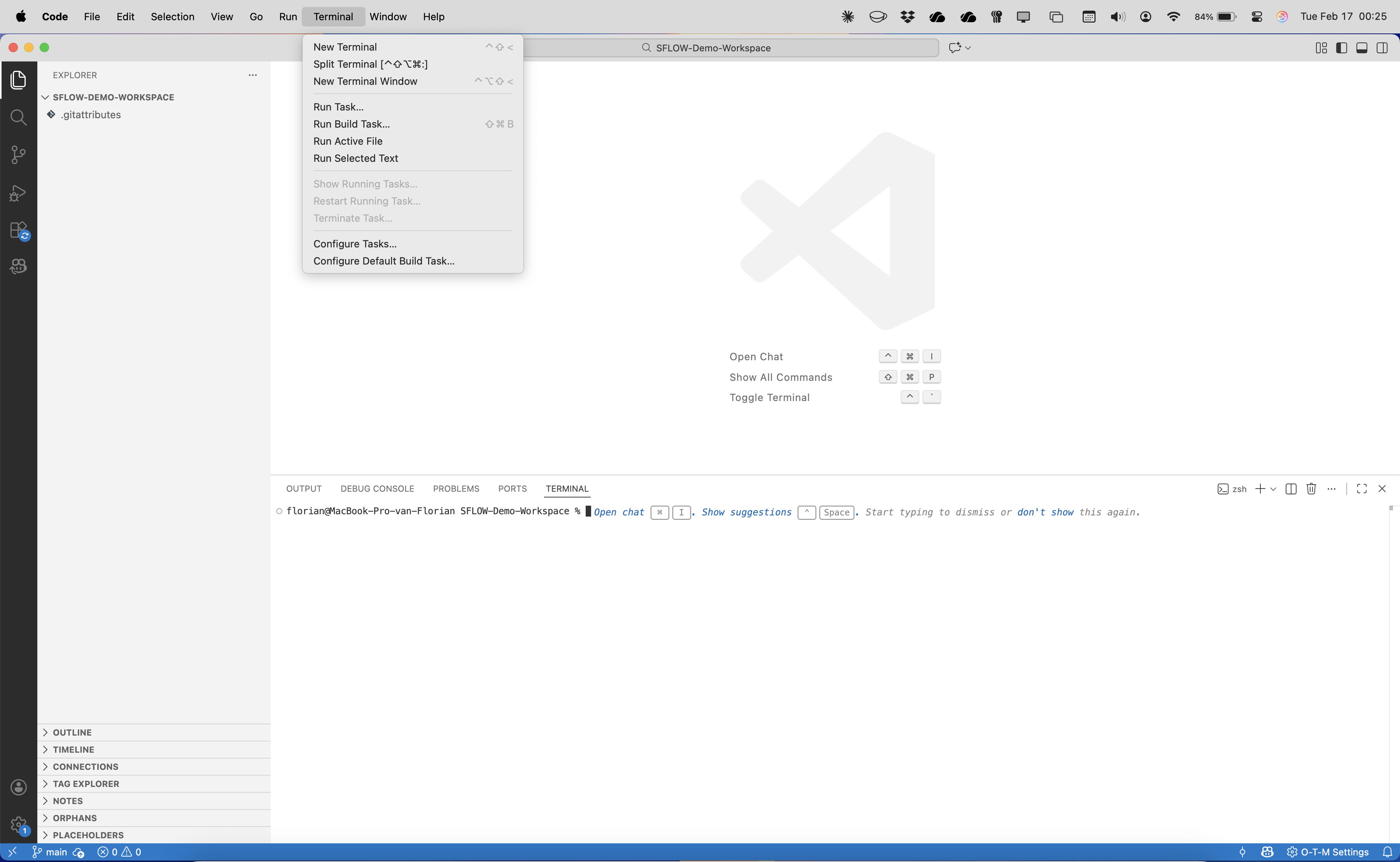
Open a folder
We open a new workspace in VS Code and open the terminal. That is all the setup you need — no project scaffolding, no plugin configuration, no file uploads.
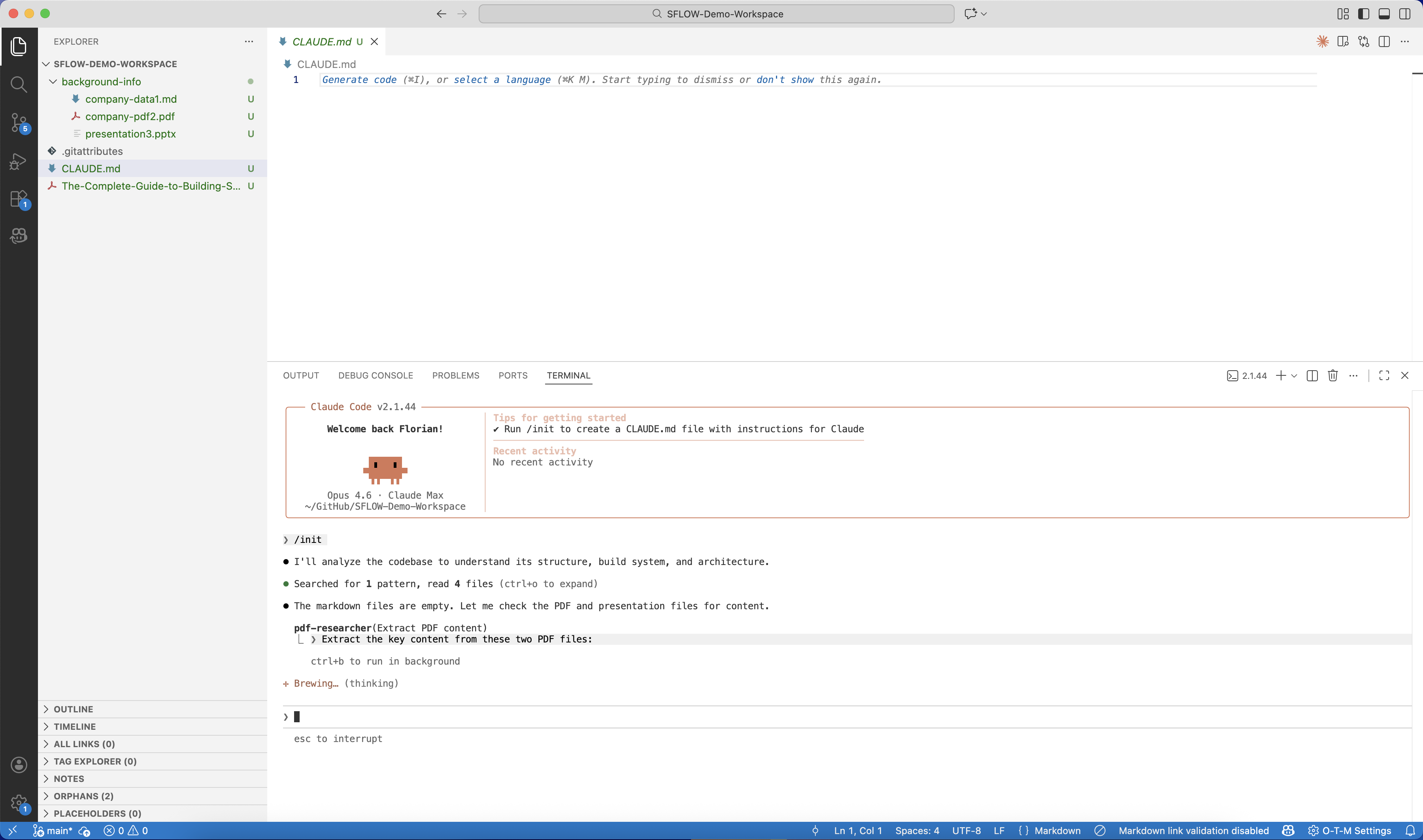
We type claude in the terminal and run /init. Claude Code scans the workspace — finds PDFs, presentations, and markdown files we placed in the folder — and analyzes their content through the PDF extraction MCP server.
Context in seconds
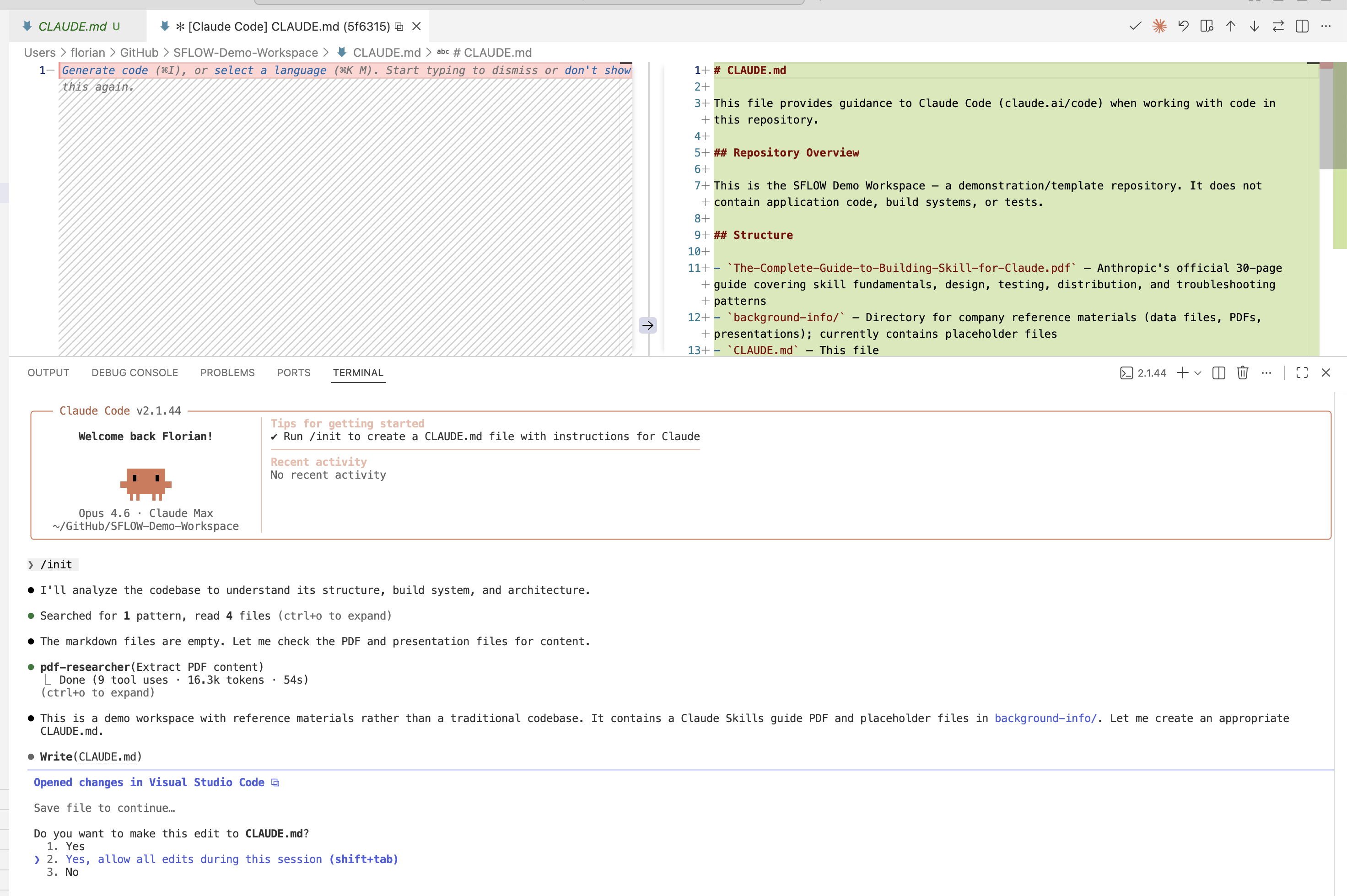
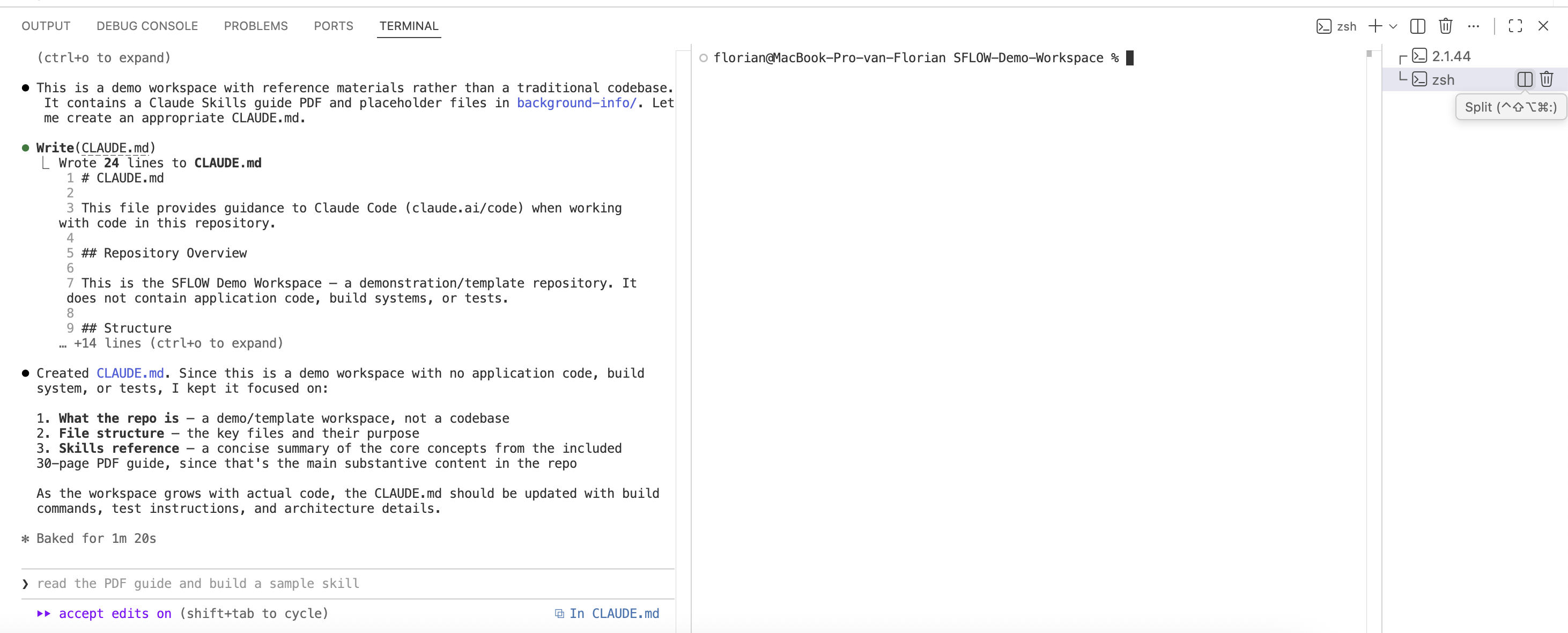
Within a minute, /init produces a CLAUDE.md tailored to the workspace. It identifies the main substantive content — a 30-page PDF guide — and the supporting reference materials. It notes that this is a demo workspace with reference materials rather than a codebase, and adjusts its recommendations accordingly. No manual configuration needed.
Connected tools
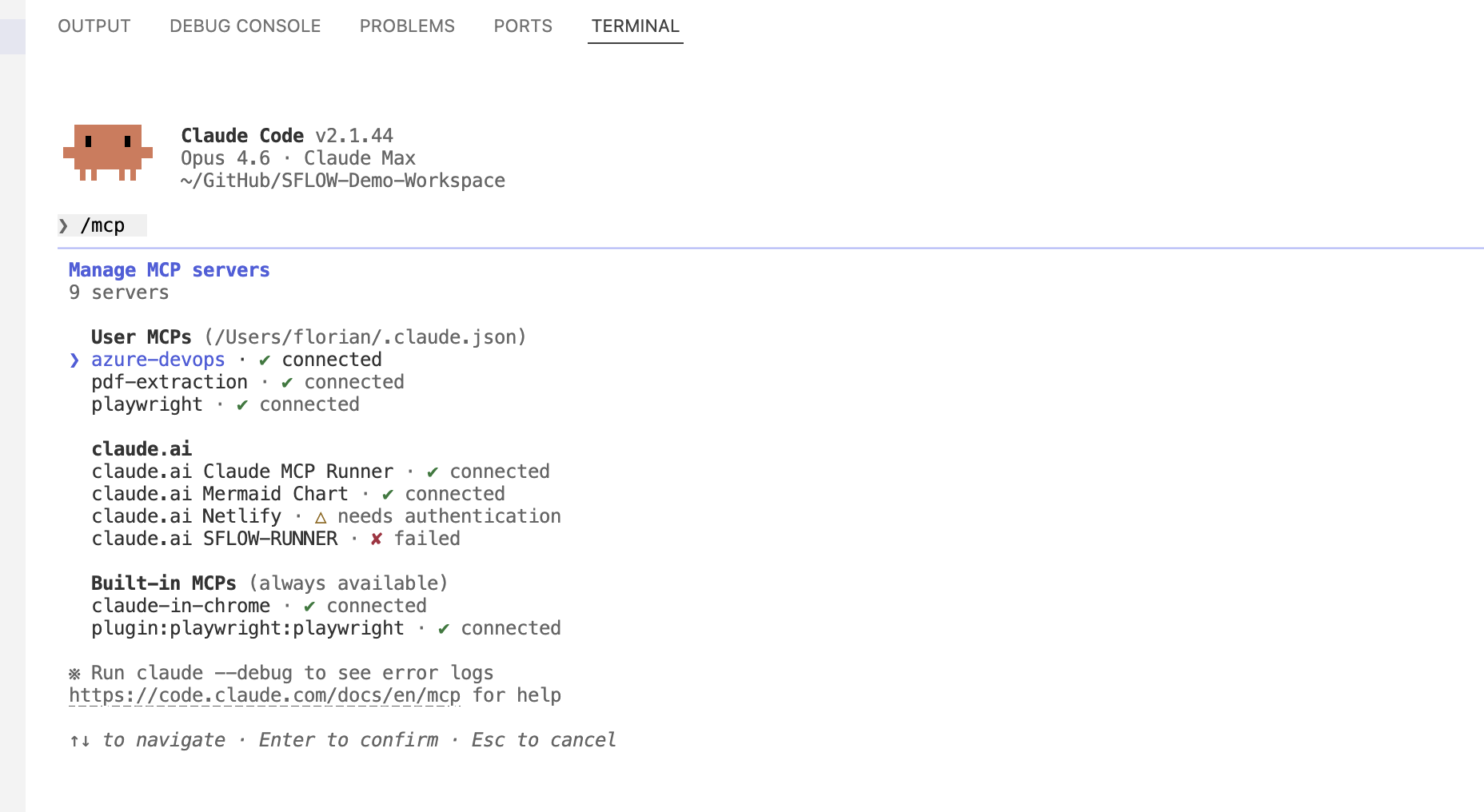
The /mcp command shows nine connected servers: Azure DevOps, PDF extraction, Playwright browser automation, Mermaid Chart, and more. These are configured once in your Claude Code settings and available across all projects. The agent can now query business systems, extract document content, browse the web, and generate diagrams — all from the terminal.
Document analysis
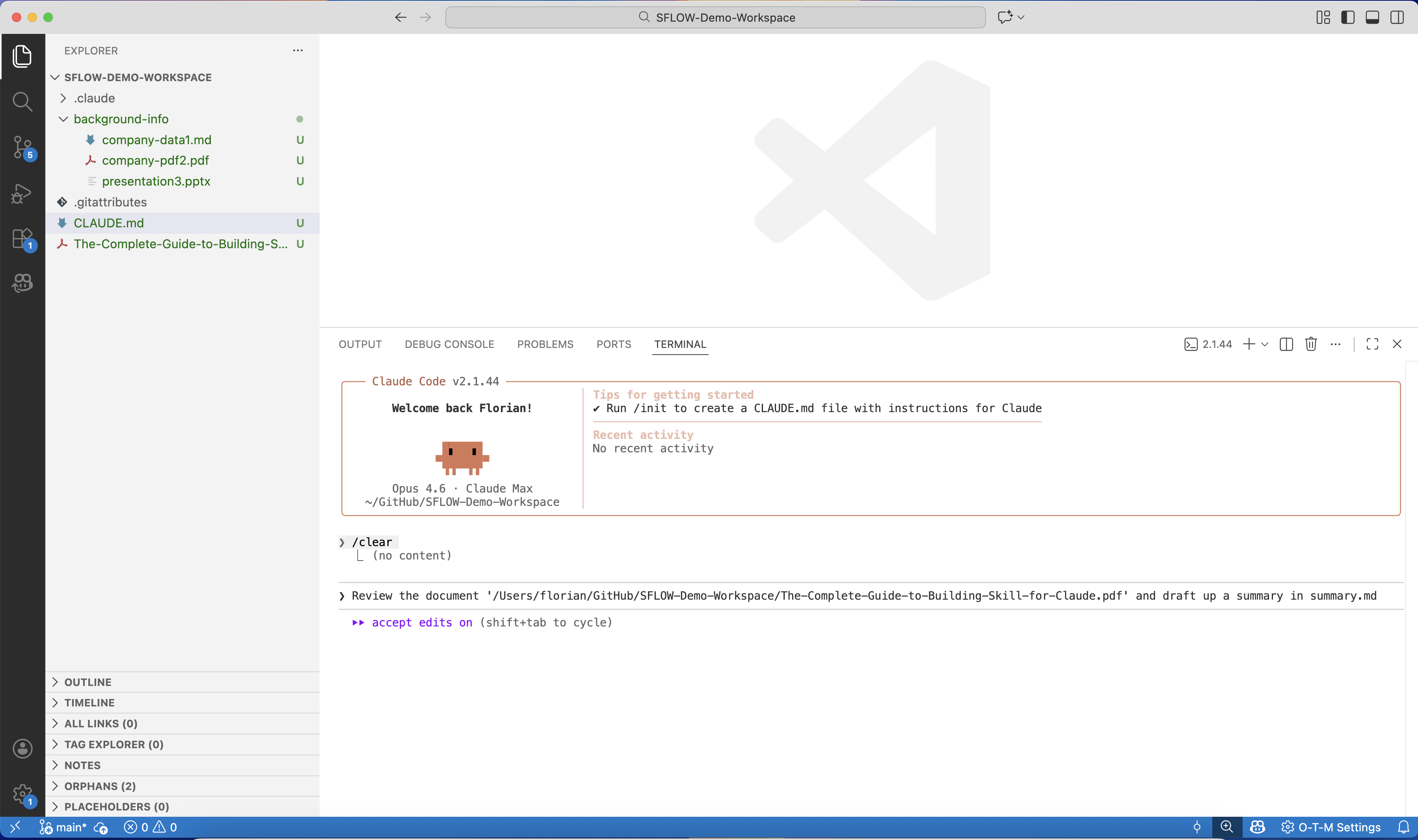
We ask the agent to review the PDF document and draft a summary. It reads the full content through the PDF extraction MCP server, identifies the key concepts, and produces a structured summary.md — complete with section headings, key takeaways, and references to specific pages.
Research and deep dives
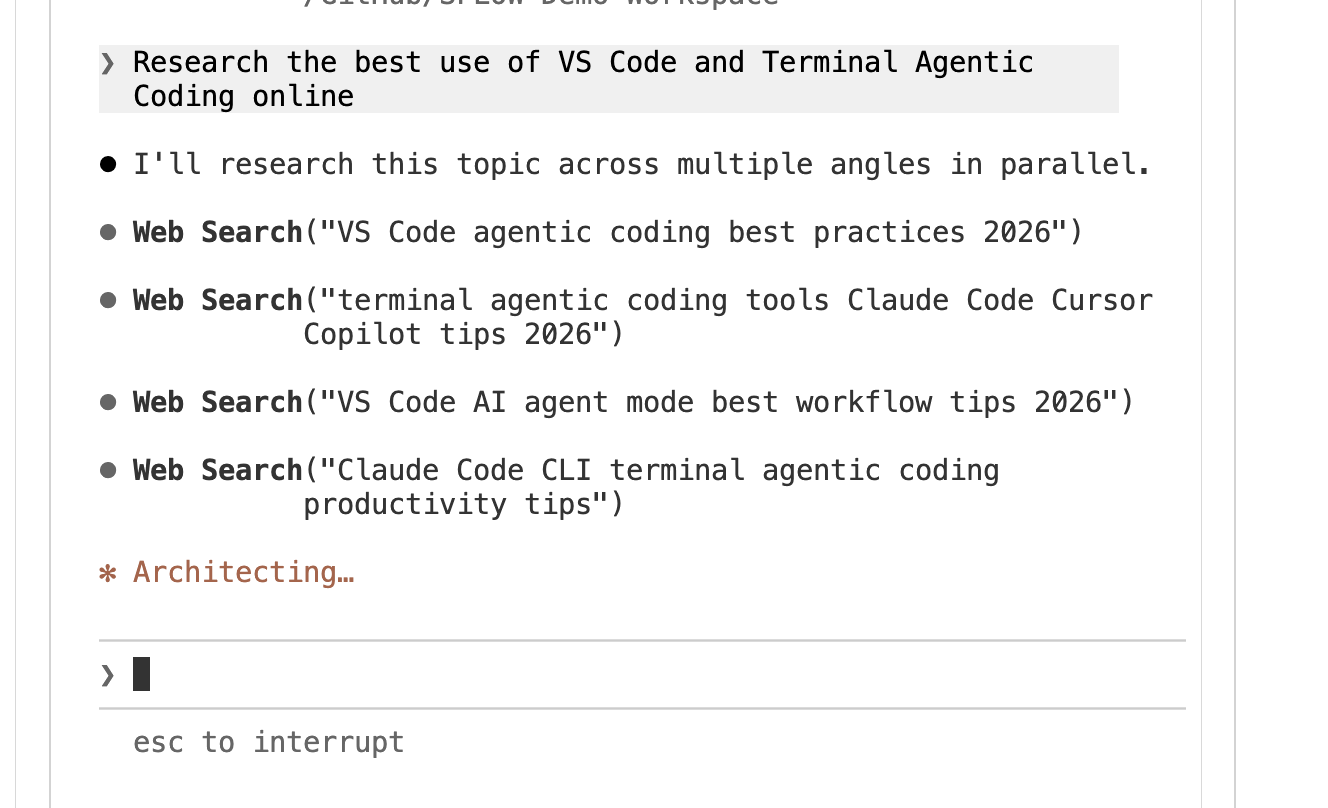
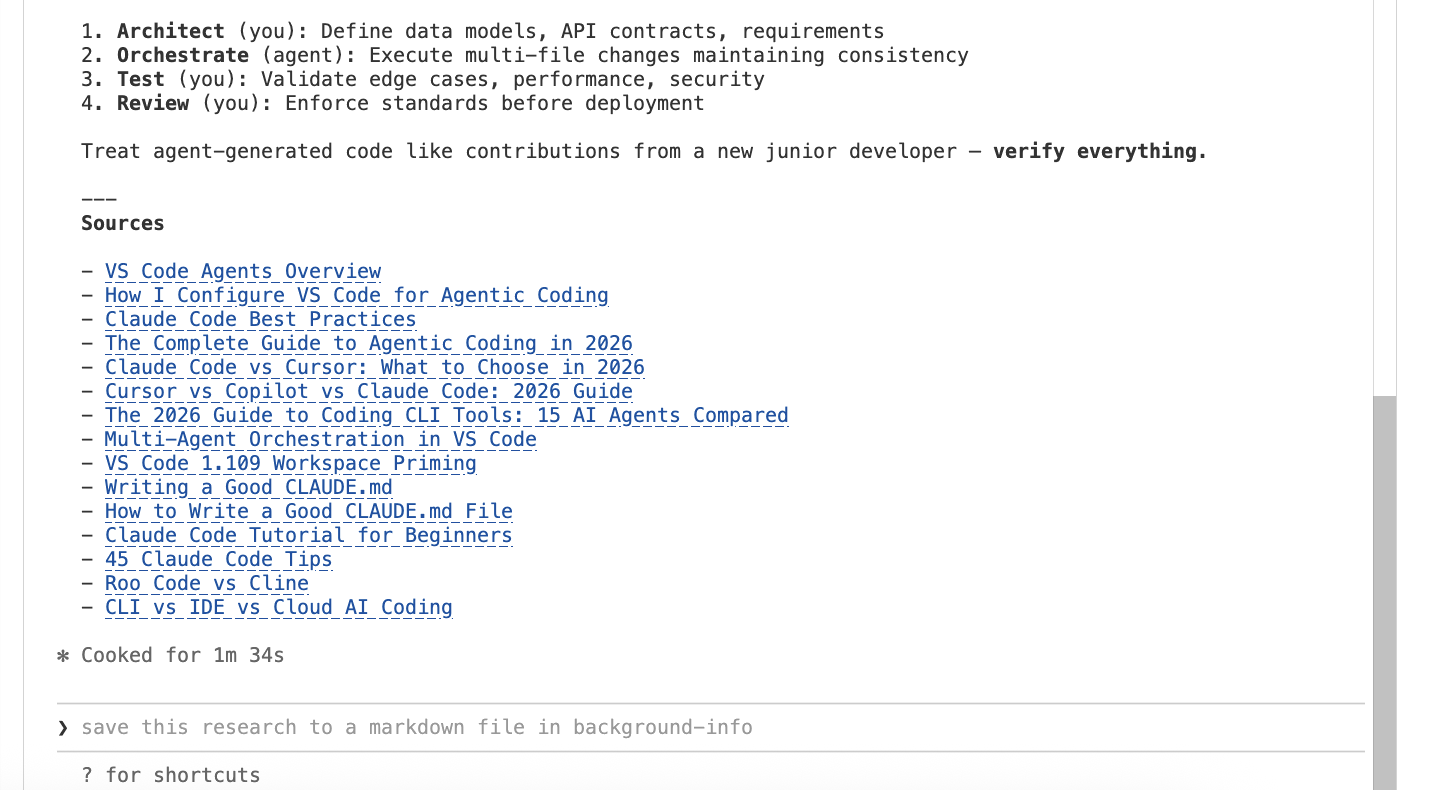
Next, we ask the agent to research a topic online. It launches parallel web searches from multiple angles, then fetches full articles for deeper analysis — pulling content from Anthropic's engineering blog, community guides, and industry publications.
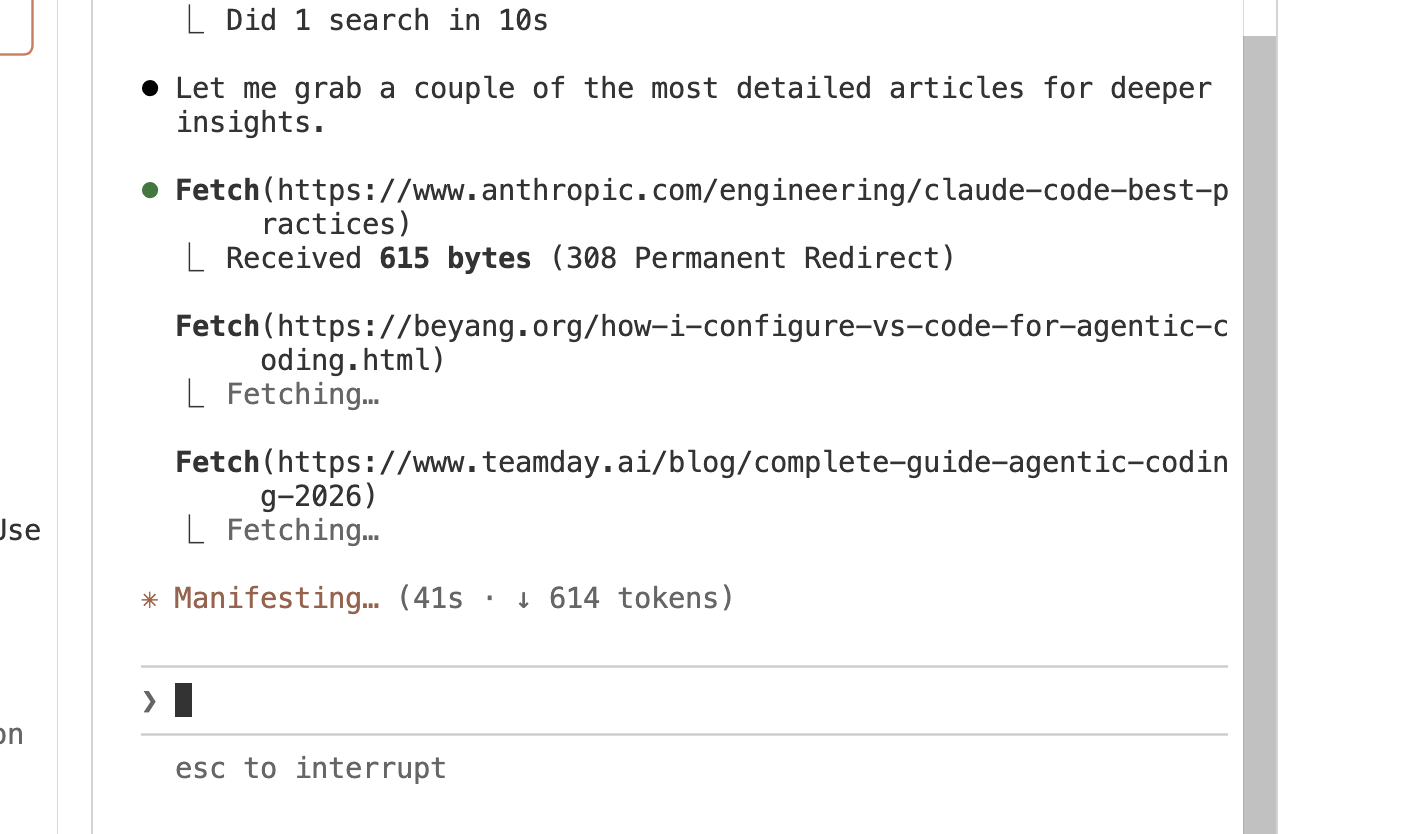
The research is synthesized into a markdown file with structured findings and a complete list of sources — ready to reference or share.
Parallel agents
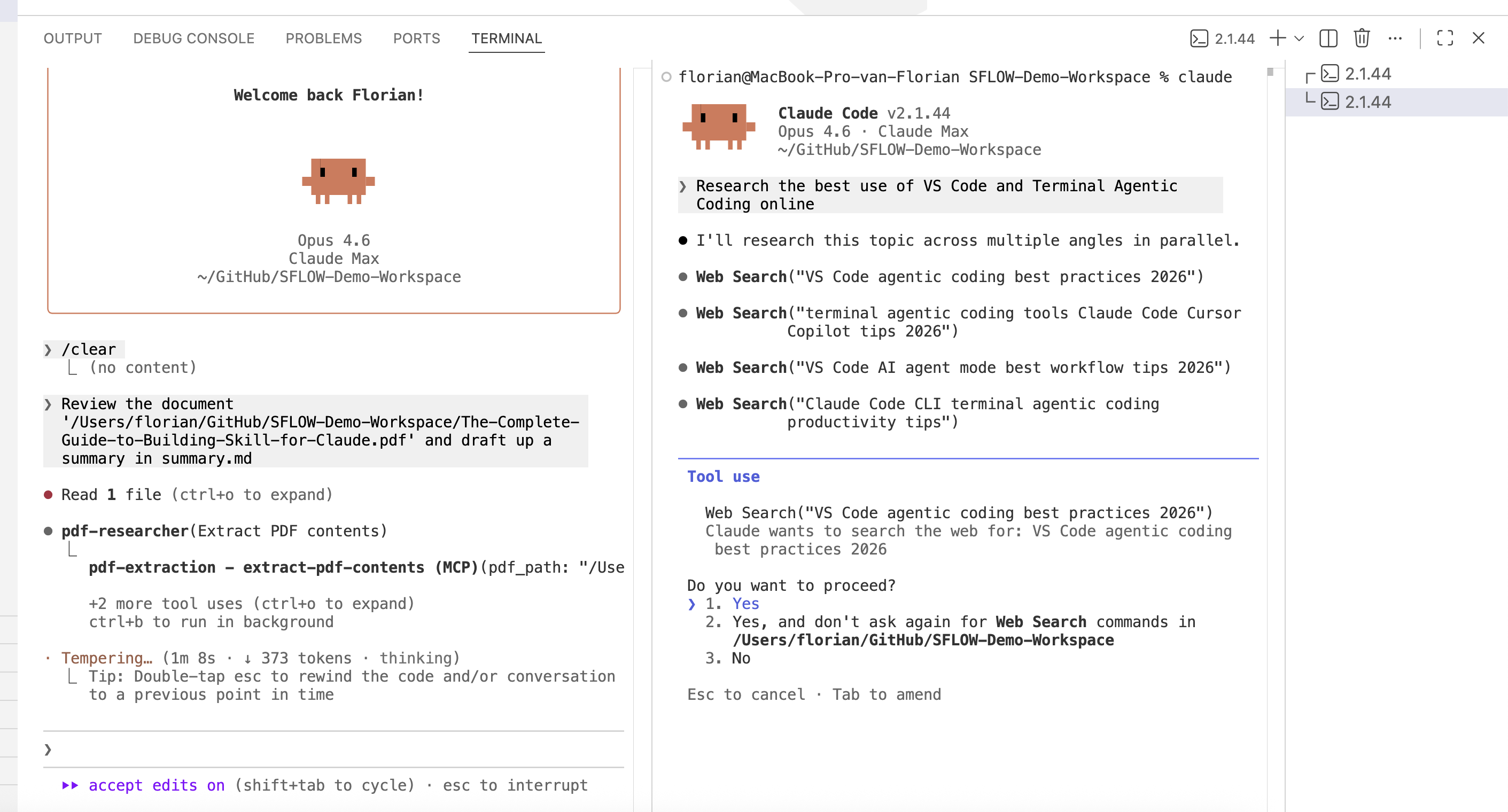
We split the terminal. Two Claude Code instances run simultaneously — one reviewing the PDF document, the other doing web research. Both work on the same workspace without conflicts. This is the kind of parallel execution that multiplies your throughput without requiring you to context-switch.
Any file format
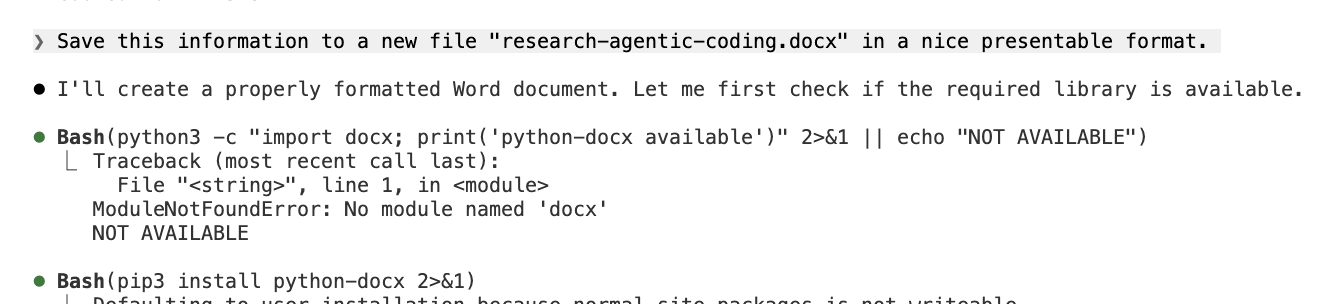
We ask the agent to save the research as a properly formatted Word document. It checks for the python-docx library, installs it on the fly, and produces research-agentic-coding.docx — a formatted, ready-to-share deliverable. The agent is not limited to markdown or chat transcripts. It can produce Word documents, PowerPoint presentations, spreadsheets, PDFs — whatever the task requires.
You can download the actual document produced in this session: research-agentic-coding.docx.
From manual to automated
For a business-focused example of what this looks like at scale, see From Stock Index to Sales Pipeline — where we used 20 parallel AI agents to research 90 companies across three European stock indices, generate personalized outreach, and deploy a live CRM in one session.
Once you find an agent workflow that works — a daily data check, a weekly report, a response to incoming webhooks — you do not have to run it manually every time. The Claude Runner is an open-source scheduling platform we built that executes AI agent tasks on a cron schedule, reacts to webhooks, and supports multiple providers (Claude, OpenAI, Ollama, Python scripts). It turns the workflows you prototype interactively in VS Code into persistent, autonomous automation — with workspace isolation, tool governance, and full audit logging. Think of VS Code as where you experiment and the Runner as where you deploy.
Browser automation
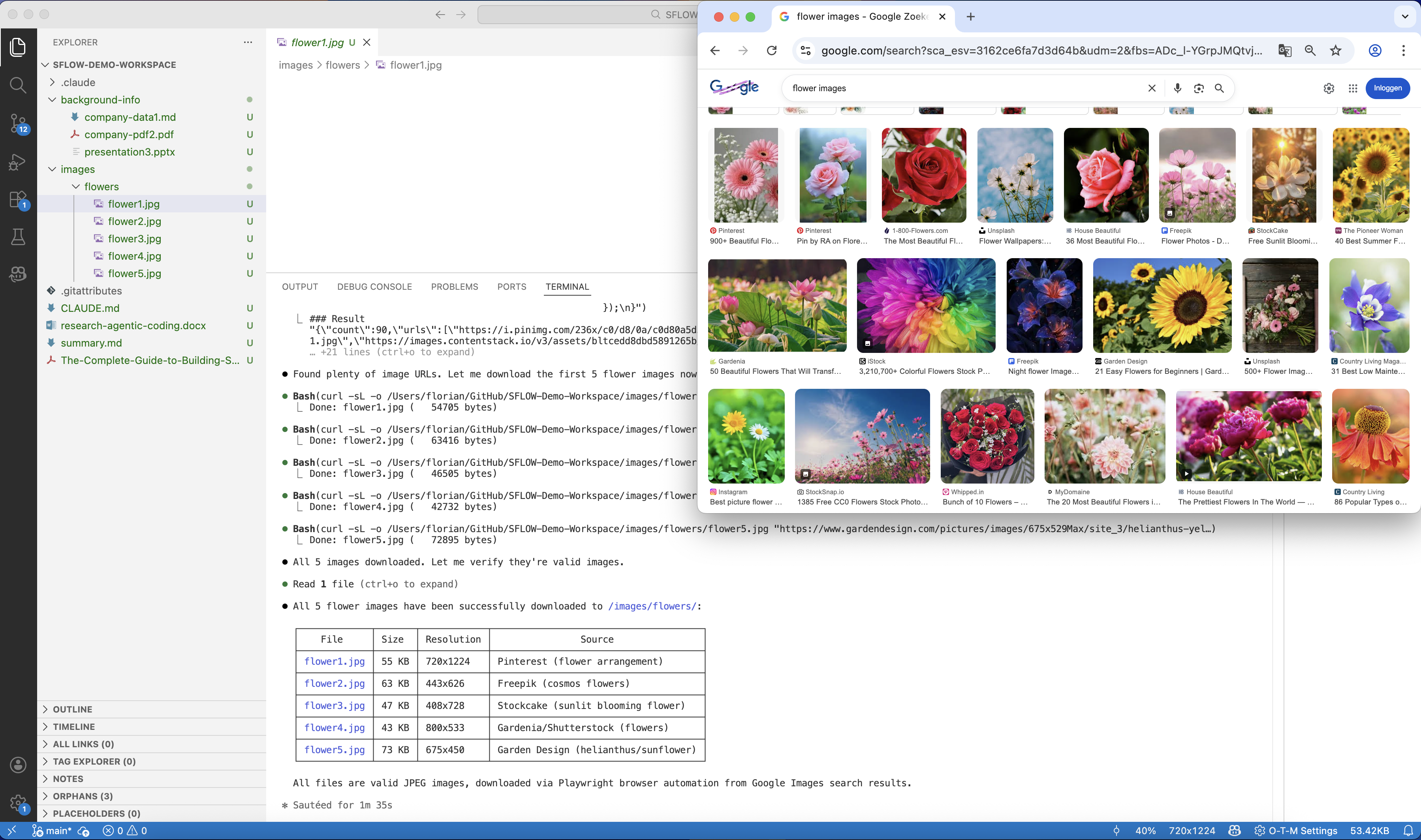
Browser automation through the Playwright MCP server lets the agent interact with any website the way a person would — navigating pages, handling dialogs, extracting data, and downloading files. In practice this means scraping a supplier portal that has no API, pulling delivery status from a logistics provider's web interface, or monitoring a procurement page for price changes.
In this demo, we show the mechanics: the agent navigates Chrome, handles the cookie consent dialog, downloads reference images to a local folder — all from a single natural language instruction. It verifies the downloads and produces a summary table with file sizes and sources. The same sequence, pointed at a supplier portal or an internal reporting dashboard, works identically.
Multi-model flexibility
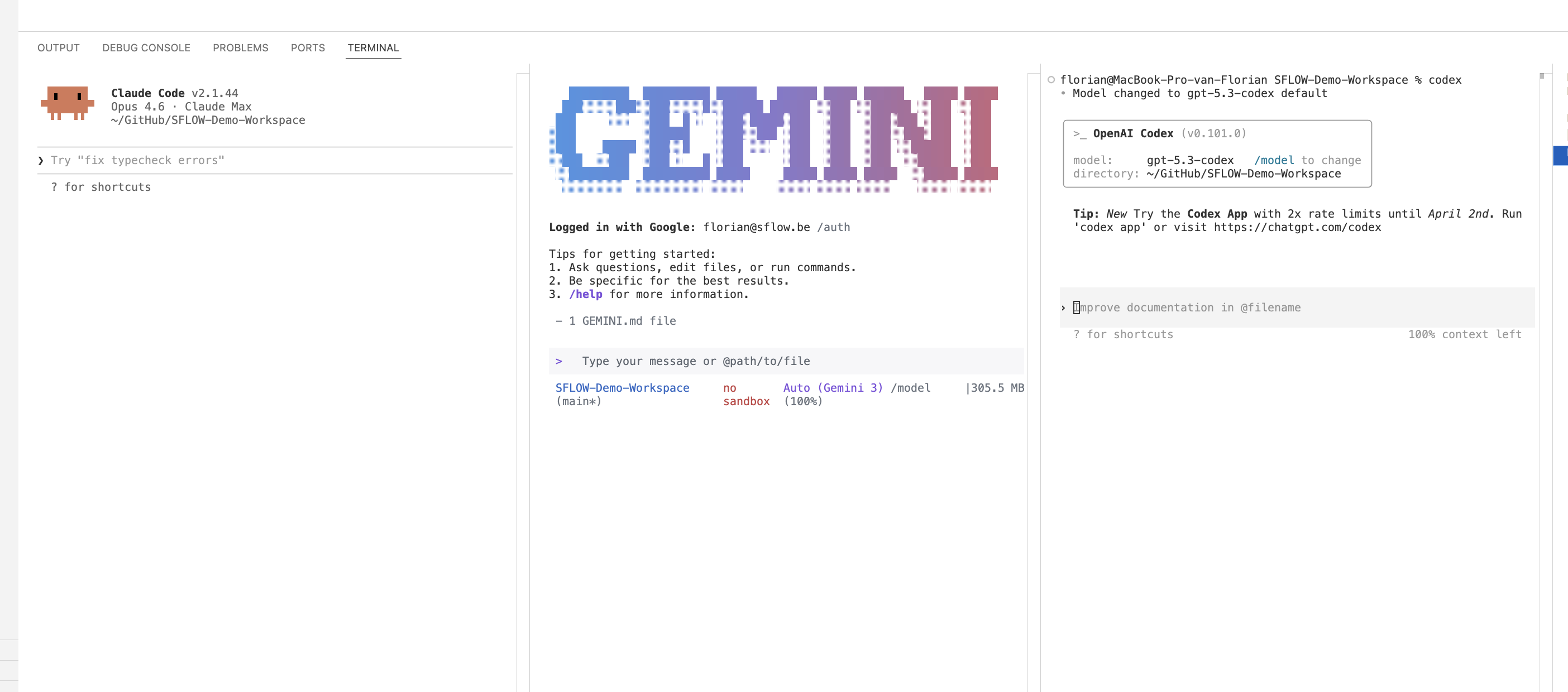
We open two more terminal panes: Gemini CLI and OpenAI Codex. Same workspace, same files, three different AI providers running simultaneously. Each brings different strengths — compare approaches, use each for what it does best. The editor and workflow stay the same regardless of which AI is behind it.
Everything tracked
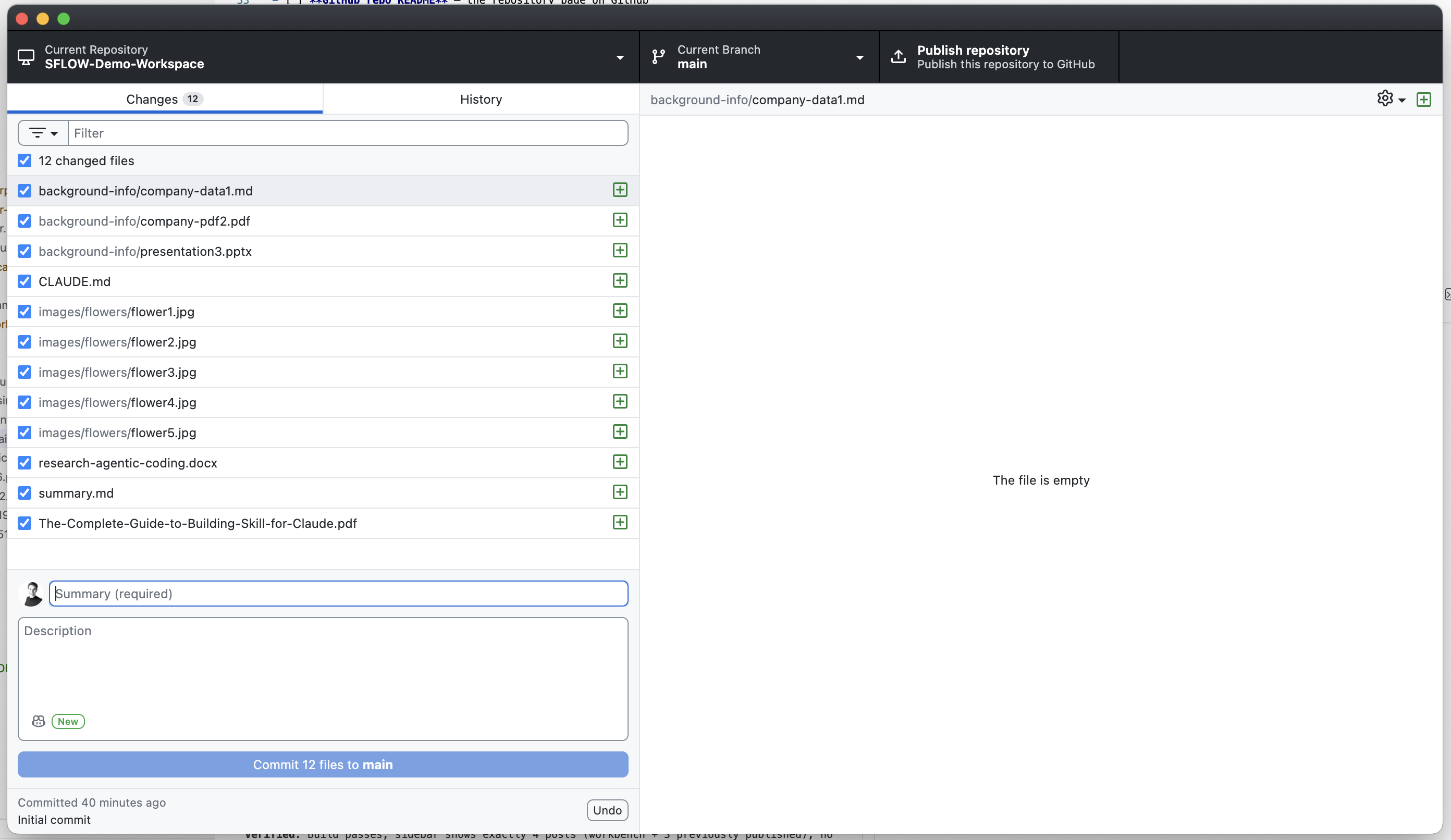
We switch to GitHub Desktop. Twelve files produced in a single 40-minute session: company data, CLAUDE.md, research document, Word deliverable, summary, downloaded images. Every file is version-controlled. Every AI-assisted action is in the audit trail. This is the governance layer that web-based AI tools simply cannot provide.
Want to get better at document and data analysis with AI?
Our AI Power User course teaches practical techniques for analyzing documents, structuring AI projects, and knowing when AI is and is not the right tool.
Why Not Cursor, Windsurf, or Others?
We get this question frequently, and we want to give a fair answer.
Cursor and Windsurf are capable products that have innovated on AI-assisted work. If you are evaluating them purely for code completion and inline AI assistance, they are worth considering.
But for an organizational AI workbench, VS Code has structural advantages:
Open source. VS Code is built on MIT-licensed open source. Your organization is not dependent on a startup's pricing decisions or continued existence. The codebase is auditable.
Ecosystem scale. The VS Code extension marketplace has 60,000+ extensions. Cursor and Windsurf inherit some of this through VS Code compatibility, but the native integration is deeper and more reliable in VS Code itself.
Free. VS Code costs nothing. Terminal AI agents like Claude Code are pay-per-use for the AI API calls. There is no per-seat editor license to negotiate.
Team adoption. Many of your team members probably already use VS Code. Introducing a new editor for AI work creates friction. Terminal AI agents run in VS Code's built-in terminal — zero editor migration.
Agent-agnostic. VS Code does not lock you into one AI provider. Claude Code, Codex, and Gemini CLI all run in the same terminal. You can switch between them or use different agents for different tasks. The editor and workflow remain the same regardless of which AI is behind it.
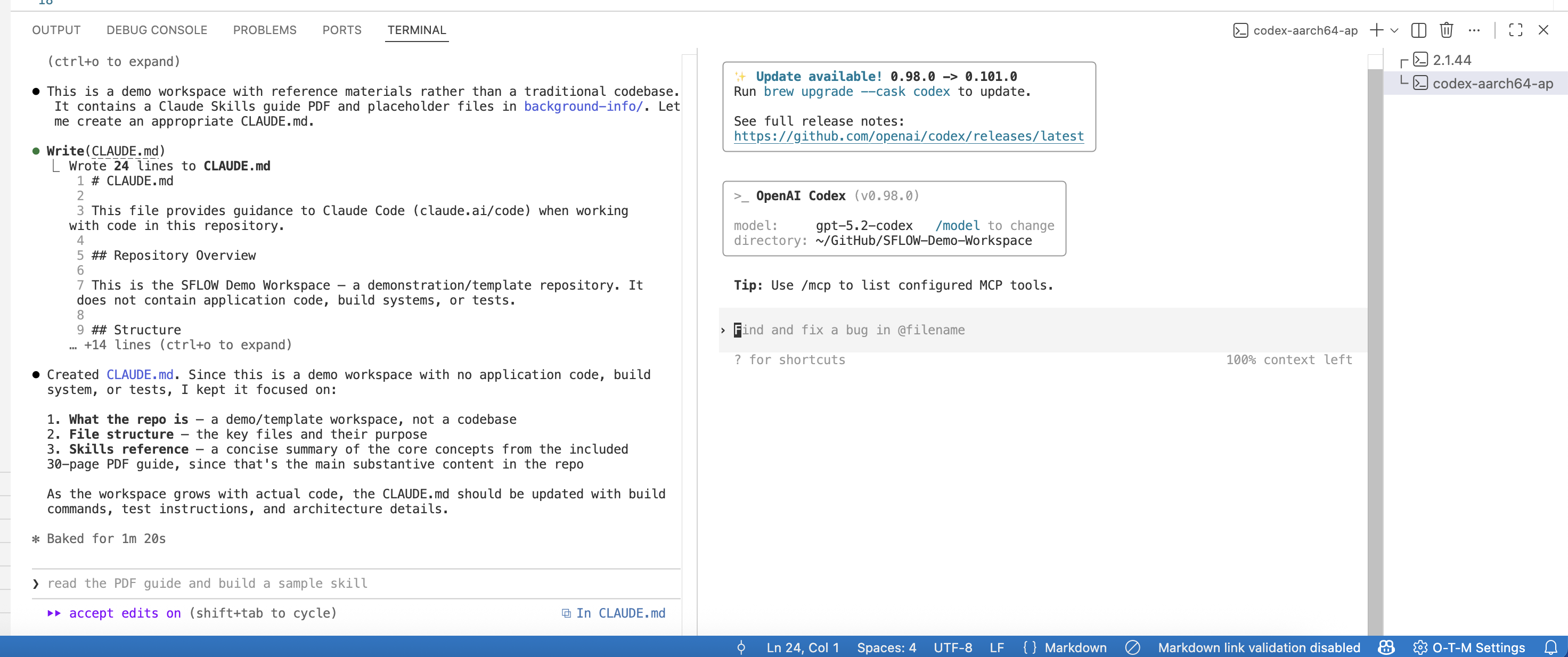
Multi-agent orchestration. VS Code v1.109 (January 2026) introduced background agent execution with Git worktree isolation and unified session management. You can run multiple agents simultaneously — some in foreground, some in background — coordinating parallel work streams without file conflicts. This transforms VS Code from a single-agent environment into a multi-agent orchestration hub. Cursor and Windsurf are built around one AI assistant at a time.
Terminal AI agents run anywhere. Claude Code, Codex, and Gemini CLI are not VS Code-specific — they run in any terminal. But VS Code provides the best integrated experience because of the terminal, file explorer, Git integration, and extensions working together.
The honest assessment: Cursor provides a more polished inline AI experience for pure coding. But VS Code with terminal AI agents provides a more capable and flexible platform for the full range of AI-assisted work — not just writing code, but analyzing data, querying business systems, producing deliverables in any format, and managing projects.
Getting Started
If you want to try this approach, here are six steps:
1. Install a terminal AI agent. We recommend starting with Claude Code. It installs as a CLI tool and runs in any terminal, including VS Code's integrated terminal. Alternatives include Codex and Gemini CLI.
2. Create a CLAUDE.md. In your project folder, write a brief document describing the context: what the project is about, what files are important, what you are trying to accomplish. Or just run /init and let the agent generate one for you. This is the single highest-leverage step — it transforms the agent from a generic assistant into a context-aware partner.
3. Open VS Code's terminal. Start the agent and try a simple task: "Read the files in this folder and summarize what you find." Verify that it understands your context before asking it to do more.
4. Connect an MCP server. Pick the tool your team uses most — Azure DevOps, Notion, Slack, GitHub — and configure the MCP connection. Start with read-only access. Ask the agent a question that requires data from that system.
5. Try multiple models. If you have GitHub Copilot, explore the model selector — switch between Claude, Gemini, and GPT for inline suggestions. For terminal agents, install both Claude Code and Codex — run them side by side in split terminals and compare how they approach the same task. This is how you learn which models work best for which work. Our AI Power User course covers multi-model strategies in depth.
6. Combine sources. Once you have two or more MCP connections working, ask the agent a question that spans both. This is where the approach becomes dramatically more powerful than any single web-based AI tool.
For Leadership
The Business Case
If you are evaluating AI tooling for your organization, here is the business case for VS Code as the standard AI workbench.
Cost. VS Code is free. Terminal AI agents are pay-per-use with no minimum commitment. There are no per-seat licenses to negotiate, no enterprise tier to evaluate, no annual contracts. Your team pays only for the AI API calls they make.
Training. Most technical teams already know VS Code. The learning curve is limited to the AI agent itself, which operates through natural language — the training overhead is minimal compared to adopting an entirely new platform. Non-technical team members need only learn basic terminal navigation to get started.
Security. There is no SaaS platform storing or indexing your data. Files stay on the developer's machine; the AI agent operates on the local filesystem. Context is sent to the AI provider's API for processing, but your files are not uploaded to or stored on a platform — a fundamental difference from web-based AI tools where your data lives on someone else's infrastructure. For environments where even API calls are not acceptable, Claude Code supports local models through Ollama for fully offline operation. MCP server governance adds another layer: allowlist policies let you control which external systems agents can access, defining trust boundaries at workspace, extension, server, and network domain levels.
Flexibility. VS Code with terminal AI agents is provider-agnostic at every level. If your organization later decides to use a different AI provider, model, or agent tool, the editor, MCP connections, and workflow remain the same. You are not locked into any vendor's ecosystem.
Audit trail. Every change made with AI assistance is captured in Git. Every file modification is a commit that can be reviewed, approved, and reverted. This is the governance layer that web-based AI tools lack.
Extensibility. As your AI needs evolve — from simple document analysis to MCP-connected business intelligence to full agent workflows — VS Code scales with you. The same environment that handles "summarize these contracts" also handles "cross-reference our DevOps backlog with the Slack discussion and flag the risks."
Productivity multiplication. Background agent execution (introduced v1.109, January 2026) enables true parallel work. Your team can launch agents to handle research, documentation, or data analysis tasks in the background while continuing foreground work. This is not just faster AI responses — it is running multiple AI work streams simultaneously, coordinated through unified session management.
The best AI platform is not the newest, most featured, or most hyped. It is the one your team will actually use, that integrates with your existing workflow, gives you model choice without vendor lock-in, and lets you work the way you actually work — opening folders, keeping your files local, running agents in the background, and choosing your own AI models — with the tools you already have. For most organizations, that is VS Code.
For hands-on learning, see the AI-Enabled Builder course or the Claude Code Workflows specialization.