
Module 4: Context Management
Context management is the #1 operational skill for Claude Code. More sessions fail from context mismanagement than from bad prompts. You can write perfect prompts, but if Claude has lost track of your CLAUDE.md instructions or the file it read 20 minutes ago, quality drops regardless.
This module covers how the context window works, the tools you have to manage it, and the warning signs that tell you when to act.
The Context Window (For Devs)
The context window is a fixed-size buffer. Every piece of information in a Claude Code session consumes space in that buffer:
- Your prompts
- Claude's responses
- Every file Claude reads
- Every tool output (command results, search results, diffs)
- The contents of your CLAUDE.md files
- The system prompt and configuration
When the buffer fills, earlier content gets pushed out. Claude doesn't crash. It silently loses access to information from earlier in the session. Your CLAUDE.md instructions, a file it read at the start, constraints you stated in your first prompt: all of it can fade.
This is fundamentally different from "forgetting" in the human sense. Claude doesn't know what it's lost. It continues confidently, but now it's operating on incomplete information. That's when you get answers that ignore your constraints, repeat work, or contradict earlier decisions.
WARNING
The context window doesn't grow. Reading a large file doesn't "add memory"; it displaces existing context. Reading a 2000-line file is sometimes necessary, but understand the tradeoff: you're pushing older context out to fit it.
The Three Essential Commands
/context — Know Where You Stand
Check how much of your context window you've consumed. Run this periodically, especially during long sessions.
/context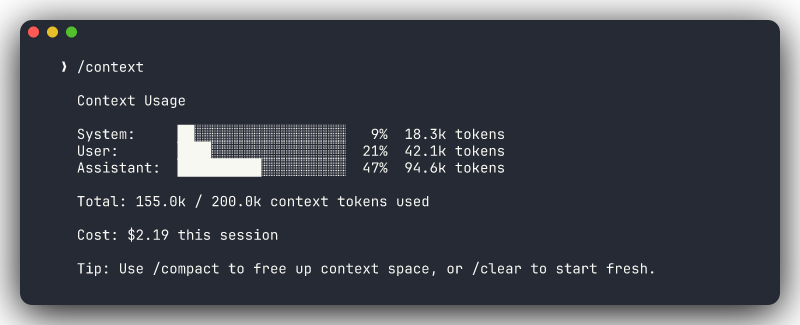
This gives you a visual indicator of usage. It's like df -h for your conversation, so you know when you're running low before you hit the limit.
When to check:
- Before starting a new subtask in a long session
- After reading several large files
- Whenever Claude's output quality seems to dip
/clear — Start Fresh
This is the most important habit. /clear resets your conversation entirely, giving you a clean slate with full context available.
/clearWhen to use it:
- Between unrelated tasks (always)
- When you finish a feature and move to a bug fix
- When you've been going for a while and quality is declining
- When you switch from one part of the codebase to another
The instinct to "keep going" in the same session is almost always wrong. A clean context with a fresh, specific prompt outperforms a degraded context with accumulated history.
The /clear Habit
Experienced Claude Code users /clear far more often than beginners expect. If you finish one task and think "now let me also...", stop and /clear first. The cost of re-stating context is much lower than the cost of degraded output.
/compact — Reclaim Space Mid-Task
When you're in the middle of something and can't start fresh, /compact compresses your conversation history. Claude summarizes the session so far, preserving key decisions and context while freeing up token space.
/compact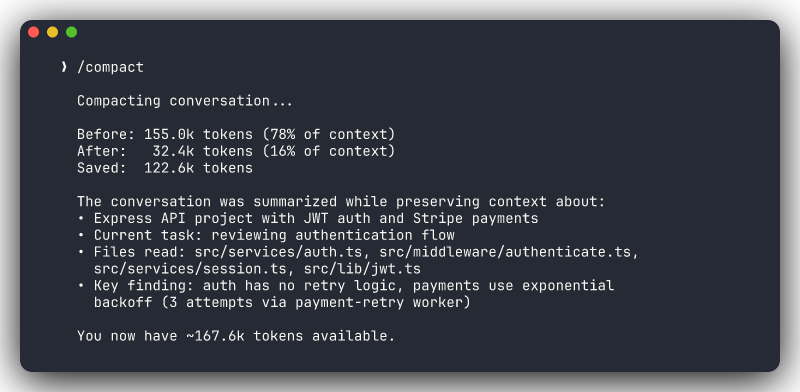
When to use it:
- You're mid-task and
/contextshows high usage - You need to read more files but you're running low on space
- The task is too interleaved to cleanly start over
/compact is a tradeoff. The summary is lossy, and subtle details may not survive compression. But a compacted session with room to work beats a full context window where Claude can barely fit a response.
Auto-Compaction
Claude Code automatically compacts when approaching the context limit. But don't rely on this as your strategy. Auto-compaction is a safety net, not a workflow. When it triggers, Claude is already operating in a degraded state, and the automatic summary may not preserve what you care about most.
Proactive /compact gives you control. You decide when to compress and can verify that the important context survived.
Session Persistence: --continue, --resume, and /btw
Context management isn't just about the current session. Claude Code has tools for picking up where you left off and for quick asides that don't pollute your main thread.
--continue — Pick Up Where You Left Off
claude --continueThis continues the most recent conversation in the current directory. Use it when you step away from a task and come back — the session state, including file reads, decisions made, and plan context, is preserved. No need to re-explain what you were working on.
--resume — Choose Which Session to Resume
claude --resumeThis shows a picker of recent sessions so you can choose which one to continue. Useful when you have multiple in-progress tasks across different branches or features.
/btw — Quick Questions Without Context Pollution
Sometimes you need a quick answer mid-task: "what's the syntax for X?" or "does this project use Y?" The /btw command lets you ask a side question without adding it to your main conversation context.
/btw what's the Jest flag to run a single test file?The answer comes back without polluting the context you've been building for your actual task. It's the equivalent of a quick aside to a colleague — useful context for you, but not something that needs to persist in the conversation.
Session Forking
Sometimes you want to explore an alternative approach without losing your current conversation thread. There's no built-in "fork" command. This is a workflow pattern you create yourself:
- Open a second terminal and start a new
claudesession there - Give the new session the same context (or use
--resumeto pick up from a saved session) - Explore the alternative approach in the second session
- Compare results and pick the better path
For file-level isolation, use claude --worktree in the second terminal. This gives the new session its own copy of the repository so changes don't conflict with your main working directory.
This is useful for architectural decisions where you want to see two approaches before committing, or when Claude suggests something unexpected and you want to test it without risking your main line of work.
Subagent Delegation
When you need deep investigation of a specific area ("how does the auth module work?" or "trace every place we handle currency conversion"), doing it in your main session has a cost: all those file reads and exploration results consume your context window.
Subagent delegation keeps that investigation out of your main context. Claude spawns a separate agent that:
- Explores the targeted area with its own context window
- Reads files, traces code paths, builds understanding
- Returns a concise summary to your main session
Your main context only receives the summary, not the dozens of file reads that produced it.
Use a subagent to investigate how the payment processing pipeline
works. I need to understand the flow from payment initiation to
completion, including retry logic and error handling. Summarize the
findings.
The main session stays clean. You get the understanding you need without spending your context budget on exploration.
When to Delegate vs. Explore Directly
Delegate when the investigation is deep (many files, tracing through layers), and you need your main context for implementation afterward.
Explore directly when the investigation is shallow (a few files, a quick check), or when the exploration IS the task and you don't need context for follow-up work.
Cost Management
Every interaction with Claude Code consumes tokens, which translates to either API costs or subscription usage. Context management and cost management are closely linked. Wasted context is wasted money.
Monitoring Token Usage
Token usage and cost information is displayed in the Claude Code status bar during your session. After a session ends, you'll see a summary of total tokens consumed. Check this periodically to understand what operations are expensive.
Token Optimization Strategies
Clear between tasks. A fresh session for each task is not just better for quality, it's cheaper. Accumulated context means every subsequent prompt carries the weight of the entire conversation.
Use specific file references. Instead of "find the file that handles authentication," say "look at src/middleware/auth.ts." The first prompt triggers a search across the codebase (expensive). The second reads one file (cheap).
Keep CLAUDE.md concise. Your CLAUDE.md is loaded into every session. Bloated instructions consume context on every single interaction. Include what Claude needs; link to docs for everything else.
Don't re-read files unnecessarily. If Claude already read a file earlier in the session, reference the information rather than asking it to read again. (Though after a /compact, it may need a re-read.)
Model Selection
/modelClaude Code supports multiple models. Use this to switch based on the task:
- Full-capability models for complex reasoning, multi-file refactoring, architectural decisions
- Faster/cheaper models for simple tasks: renaming, formatting, simple code generation
Matching model to task complexity is the easiest way to optimize costs without sacrificing quality.
Fast Mode
Toggle fast mode for routine work where you want quicker responses. Same model, faster output. Useful for iterative sessions where you're reviewing and tweaking rather than doing deep analysis. Available on Pro/Max/Teams/Enterprise plans.
Signs of Context Decay
Learn to recognize when your context window is failing you. These symptoms mean it's time to /compact or /clear:
Claude Repeats Work It Already Did
You asked Claude to read a file earlier. Now it's reading the same file again, as if it never saw it. This means the earlier read has been pushed out of context.
Claude Forgets Instructions
You said "ONLY modify contact.js" in your first prompt. Three turns later, Claude is editing utils.js. It's not being disobedient. It's lost the constraint.
Responses Become Generic
Early in the session, Claude's suggestions reference your specific code patterns and project structure. Late in a degraded session, responses feel like generic Stack Overflow answers that could apply to any project.
Claude Asks About Things It Already Explored
"What testing framework does this project use?", when it ran npm test twenty minutes ago. The tool output from that run is gone from context.
Quality Drops Without Obvious Cause
Your prompts haven't changed, the task isn't harder, but the output is noticeably worse. Context decay is the most common invisible cause.
The Fix
- Mid-task:
/compactto compress and reclaim space, then verify Claude still has the critical context - Between tasks:
/clearand start fresh, always - Long-running work: Break it into multiple sessions rather than pushing through in one
Practical Context Strategies
The Session-Per-Task Pattern
The simplest and most reliable strategy: one task, one session.
/clear(or start a new Claude Code instance)- State your task with full context and constraints
- Let Claude work through the agentic loop
- Review, accept, commit
/clearbefore the next task
This works for 80% of development work. Each task gets full context budget, zero accumulated noise, and Claude's best performance.
The Complex Task Workflow
For complex multi-step tasks that require continuity, combine Plan Mode (Module 5) with the context management strategies above:
- Start with a plan mode exploration
/compactafter the exploration phase. The plan survives; the file-reading details don't need to- Implement against the compacted plan
/compactagain if implementation is long- Final verification and commit
Check /context at each phase transition. If you're above 70% before implementation starts, /compact before proceeding.
The Investigation Pattern
For understanding a large or unfamiliar codebase:
- Spawn subagents for independent areas ("investigate auth," "investigate payments," "investigate the data layer")
- Collect the summaries in your main session
- Use the summaries to plan your changes in the main session
- Implement with full context available for the actual work
This keeps your exploration cheap (subagent context) and your implementation rich (main context).
Key Takeaways
- The context window is a fixed budget. Every file read, tool output, and response spends from it. Once it's full, earlier information silently disappears.
/clearbetween unrelated tasks, always. A fresh context outperforms a degraded one./compactwhen mid-task and running low. It's lossy but better than hitting the wall./contextregularly to know where you stand before it's too late.--continueand--resumelet you pick up where you left off across sessions — session persistence without context bloat./btwfor quick side questions that don't pollute your working context.- Delegate deep investigations to subagents to keep your main context clean for implementation.
- Match your model to your task complexity. Don't use a full reasoning model for simple renames.
- Recognize context decay symptoms: repeated work, forgotten constraints, generic responses, repeated questions.
- The best context strategy is the simplest one: one task, one session, full context budget.